Many businesses use Microsoft SQL Server…even more utilize Macs. For those projects that you don’t want to push to a production server, Microsoft SQL Server Express is a wonderful tool that can be leveraged right from your local Mac using Docker and Microsoft Azure Data Studio.
Download Docker for Mac
Docker is available for download here. This will allow SQL Server Express to be set up using Terminal. Select “Download from Docker Hub” to begin installation. You will be prompted to sign in or create a free Docker account before the download begins. Once completed, select “Get Docker”.
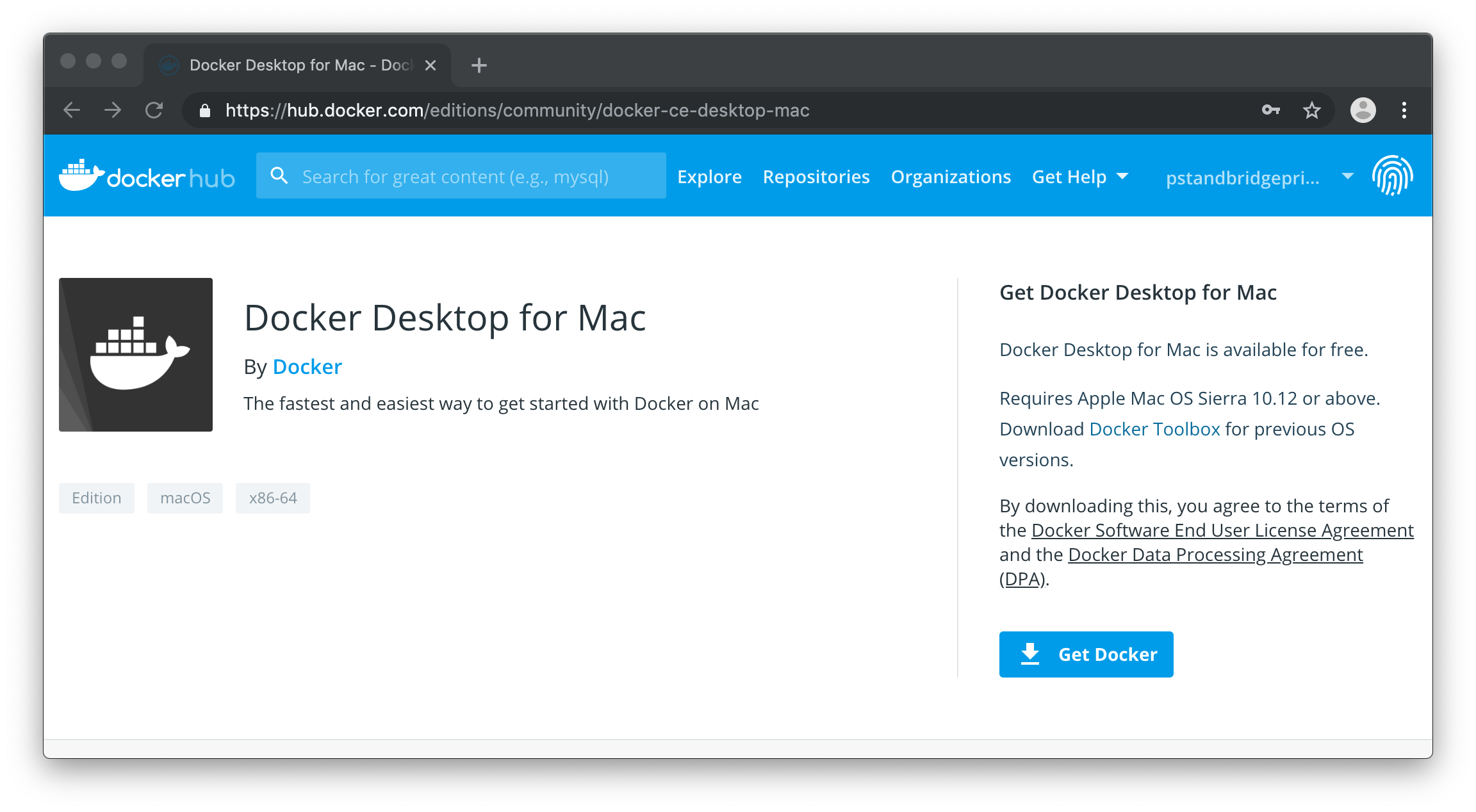
Once downloaded, open the “dmg” file and complete installation. Once installed, Docker will be in your applications folder. Open it and you will notice that the Docker icon is now showing up in the Status menu in the right corner of your screen.
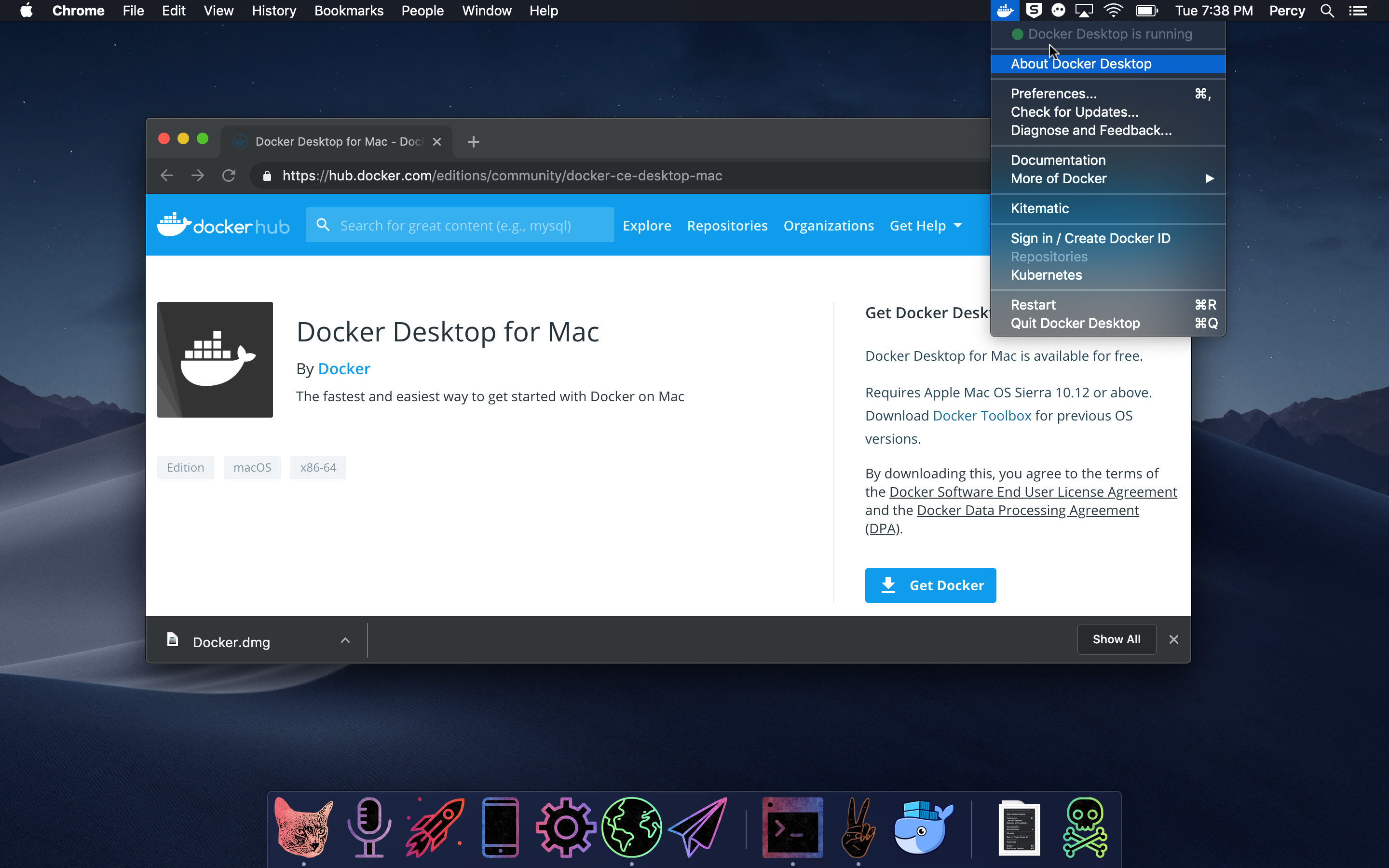
Docker is now available on your machine! It’s now time to use it to configure SQL Server Express.
Set up SQL Server using Terminal
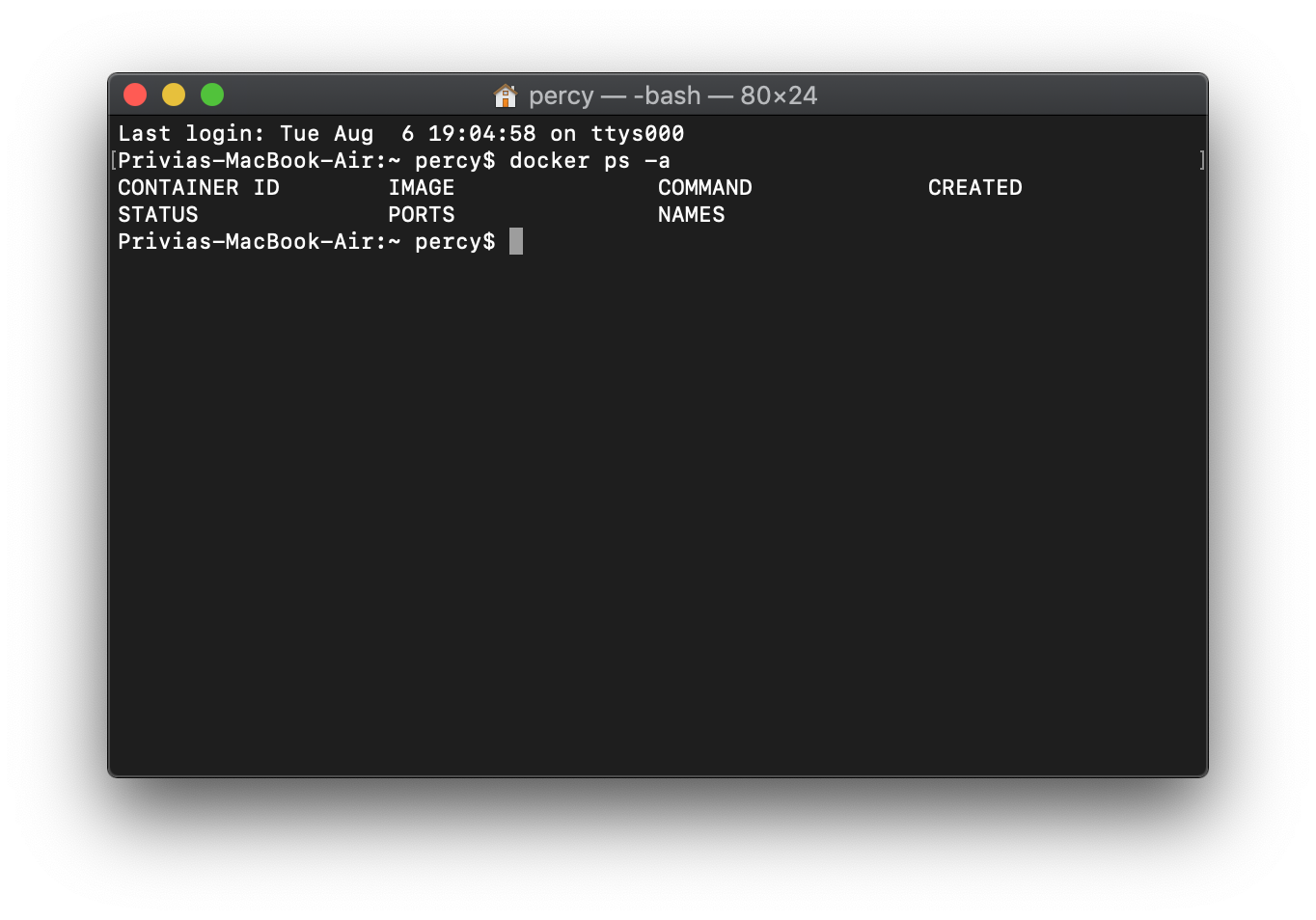
First, we will make sure that Docker is running and view any existing containers. This can be done by running the following command in the Mac Terminal app, which essentially tells the machine to list all open containers:
docker ps -a
Because Docker was just downloaded, there should not be any results:
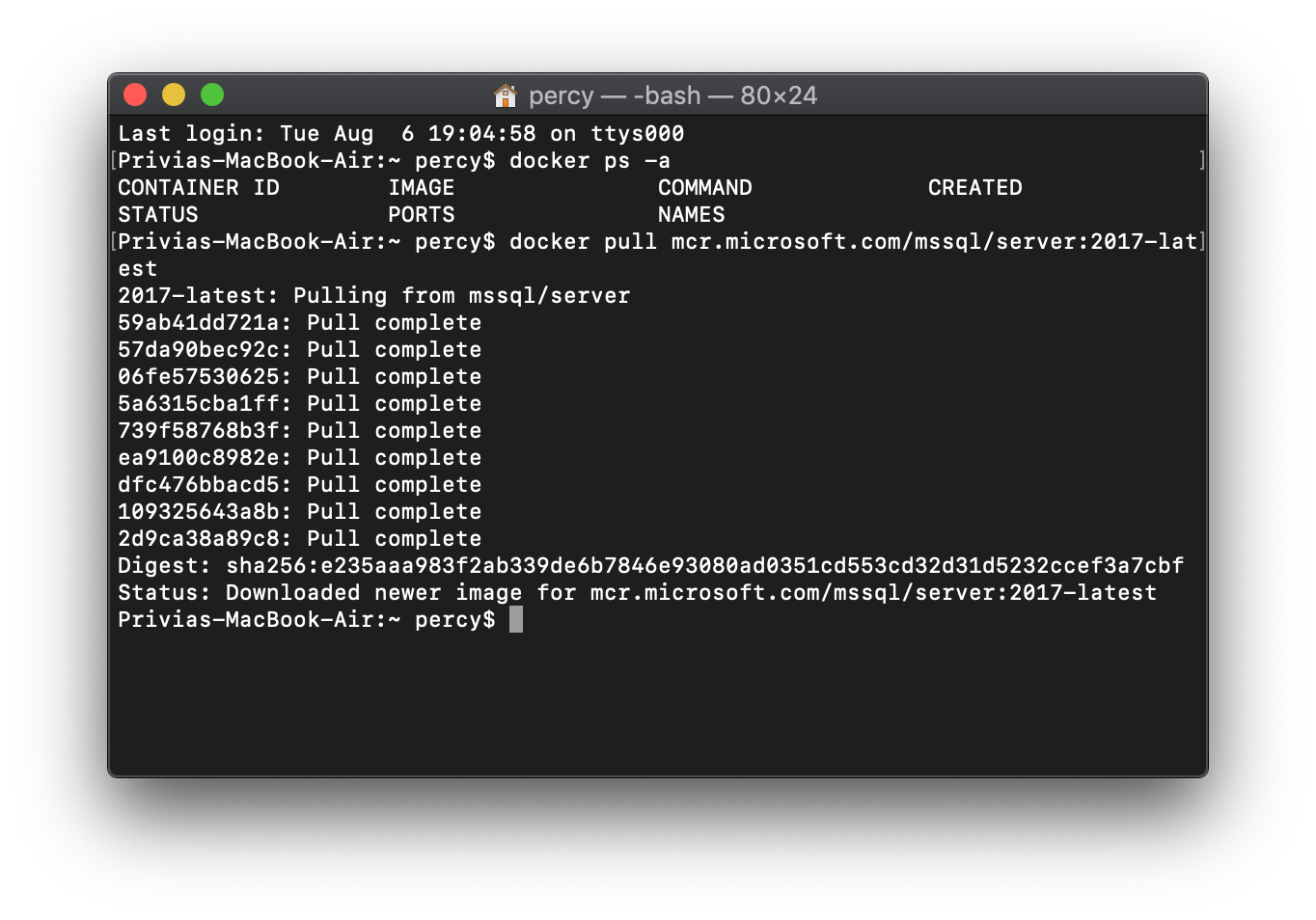
First, pull the container image from Microsoft Container Registry:
docker pull mcr.microsoft.com/mssql/server:2017-latest
Create Container and Set Password
Use following command to create a SQL container and set the password for the system administrator, which will be you as the computer user. Here, we will name the SQL container “SqlExpress” and set the password to “Blueberries.123”. Note that your password must follow the Microsoft SQL requirements. Sometimes special characters (“$”, “%”, etc.) require escape characters such as “\”, so I generally stay away from them in the command prompt, but if you do use them keep this in mind.
docker run -e "ACCEPT_EULA=Y" -e "SA_PASSWORD=Blueberries.123" -p 1433:1433 --name SqlExpress -d mcr.microsoft.com/mssql/server:2017-latest
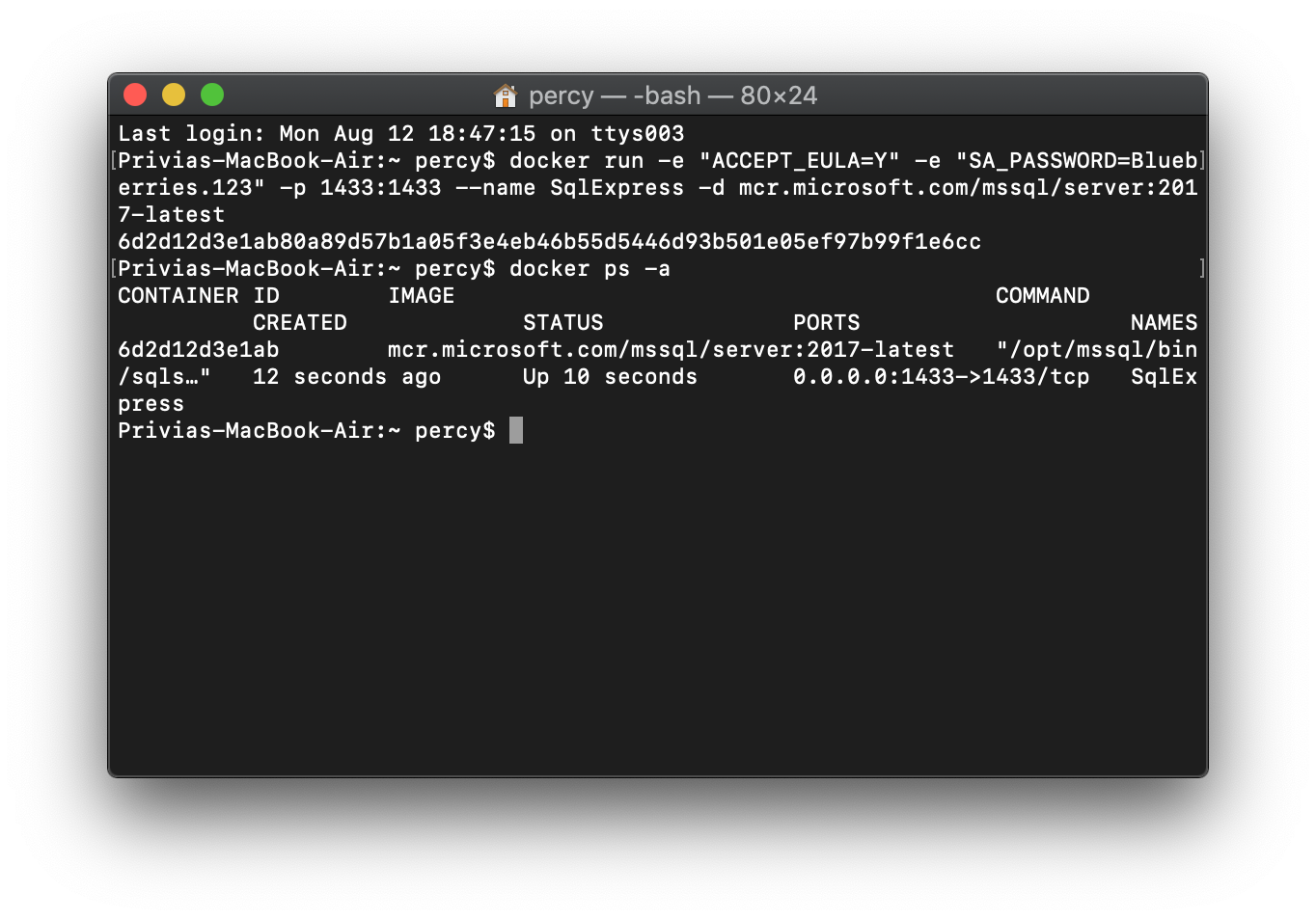
After listing all open containers, the SqlExpress containers displays with a status of “Up”. If the container ever displays a status of “Exited” you will need to start before you can run SQL commands (see Start Docker Container below for details).
Access and Query the Server
Begin by creating a bash shell with SqlExpress. Then, log in using the System Administrator credentials, the username being SA and the password being the one that was created in the steps above:
docker exec -it SqlExpress "bash"
/opt/mssql-tools/bin/sqlcmd -S localhost -U SA -P "Blueberries.123"
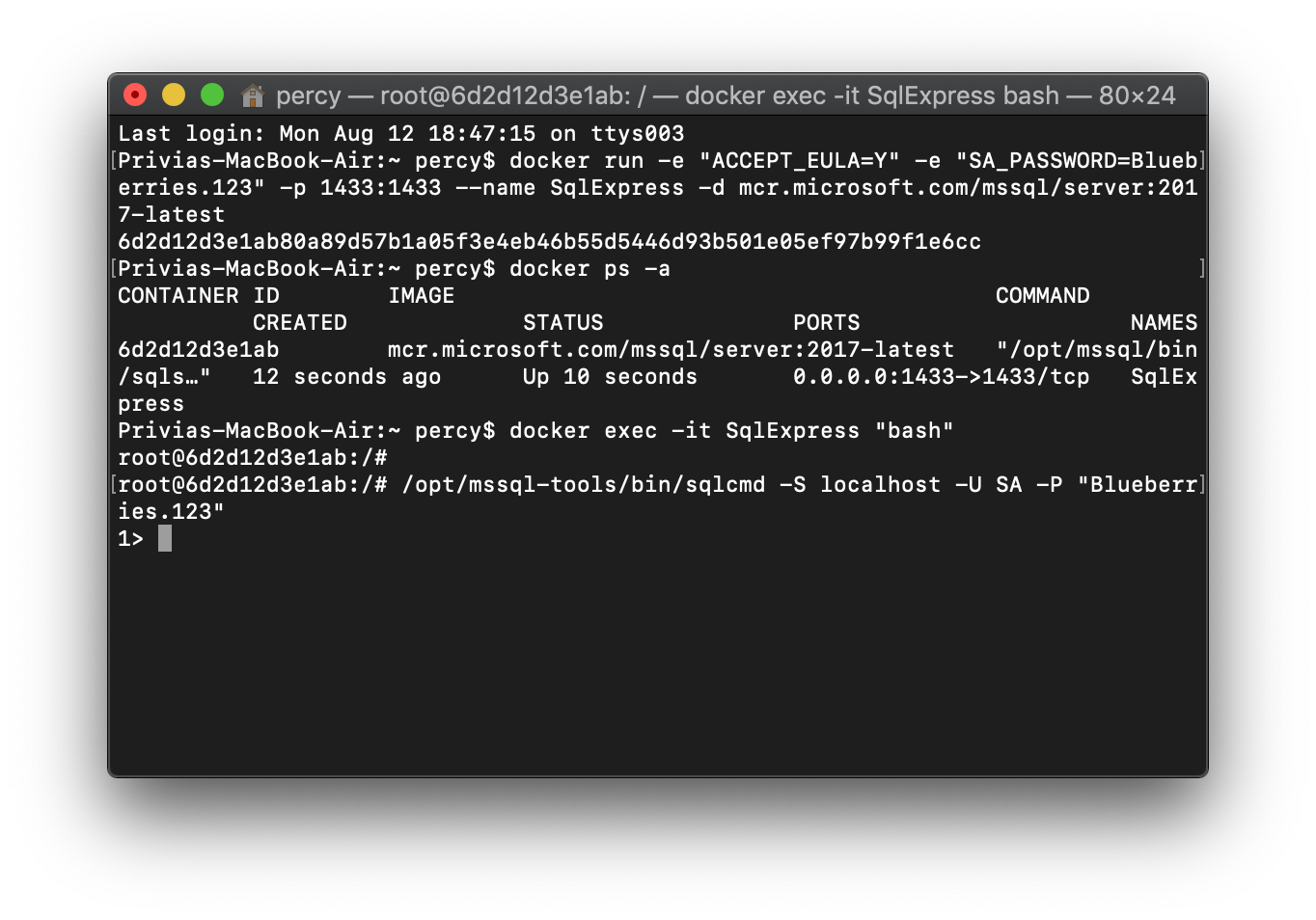
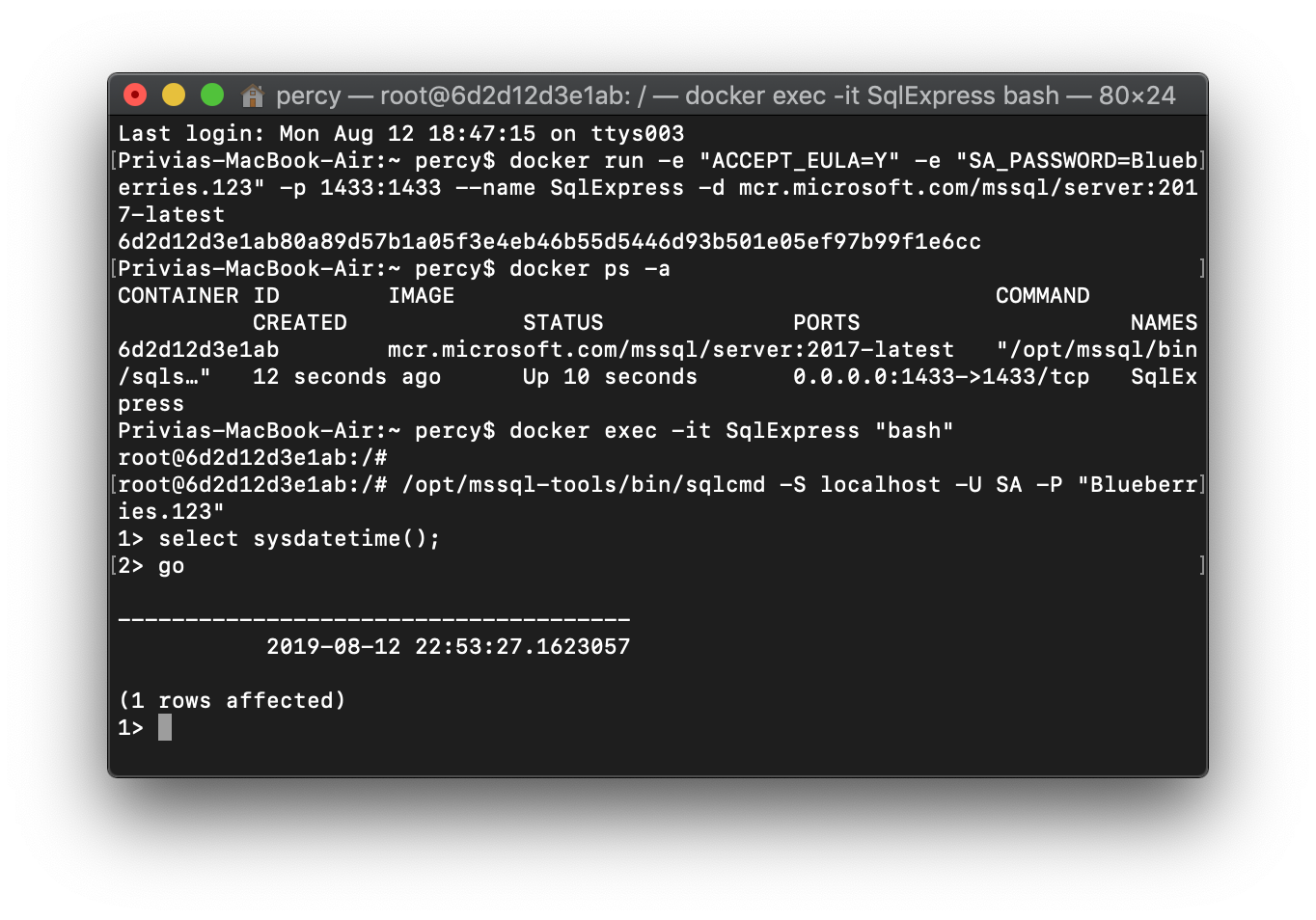
SQL commands can now be executed from this container:
select sysdatetime();
go
Change Password
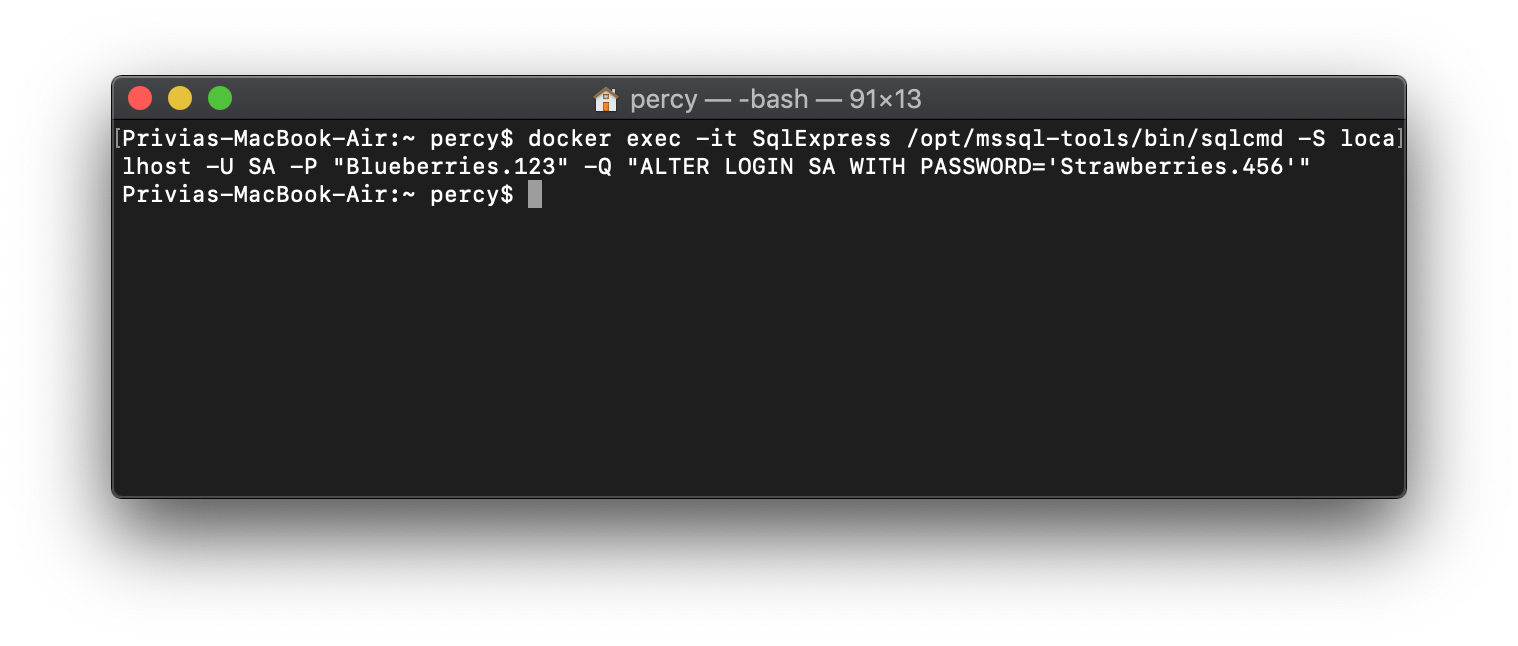
To change the password, simply login as the administrator and enter the new password, in this case “Strawberries.456”.
docker exec -it SqlExpress /opt/mssql-tools/bin/sqlcmd -S localhost -U SA -P "Blueberries.123" -Q "ALTER LOGIN SA WITH PASSWORD='Strawberries.456'"
Download Microsoft Azure Data Studio
You probably don’t want to be running your SQL code from the command prompt as it’s not very user friendly. A great free option is Microsoft Azure Data Studio, which is an interface to execute SQL commands and view results, among other capabilities. Download the Mac installer and open the application when installation is complete. A welcome page will display:
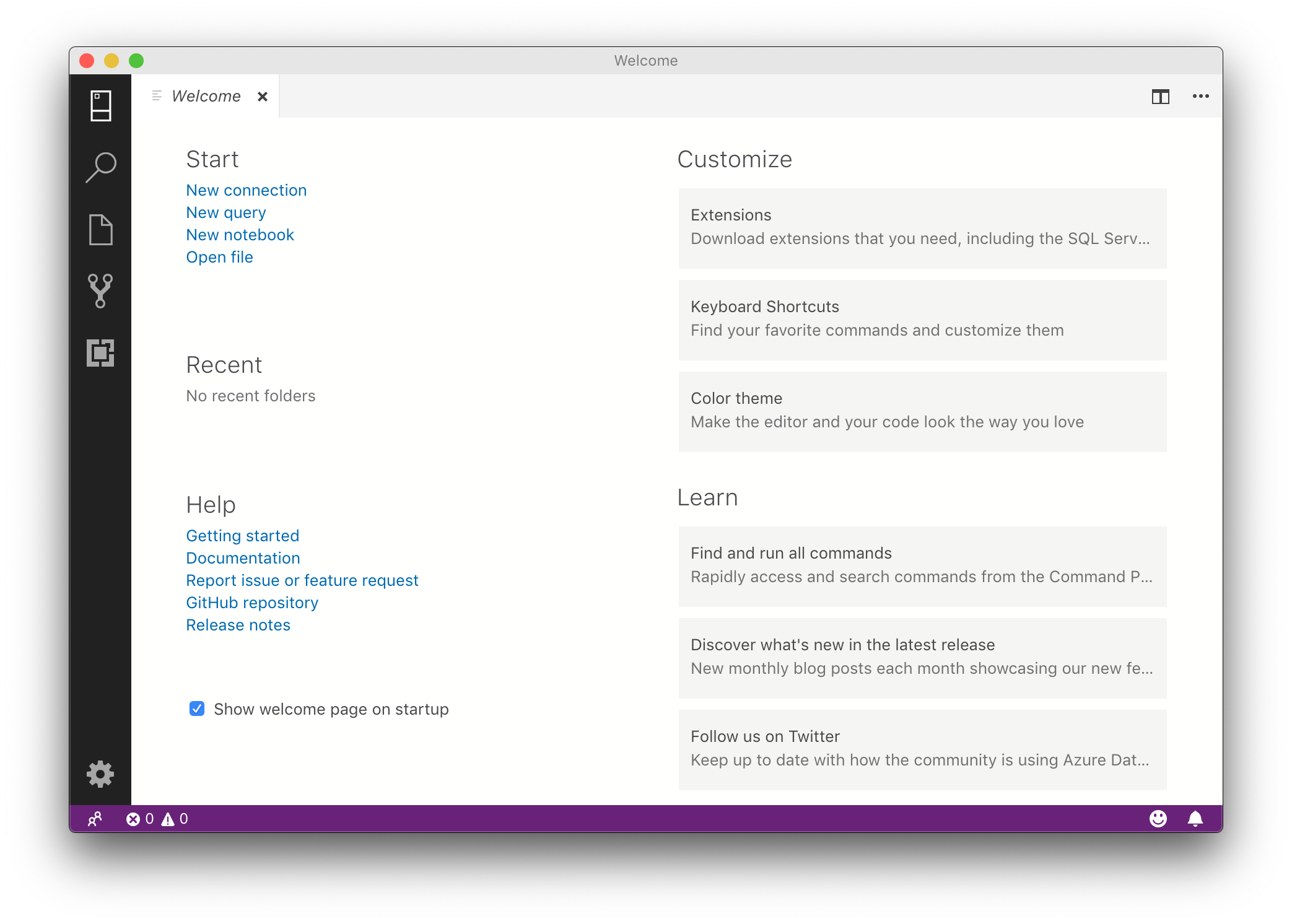
In the top left corner, select the “New Connection” icon followed “Add Connection” to connect to the SqlExpress container described above. Enter “localhost” as the Server and the credentials described above:
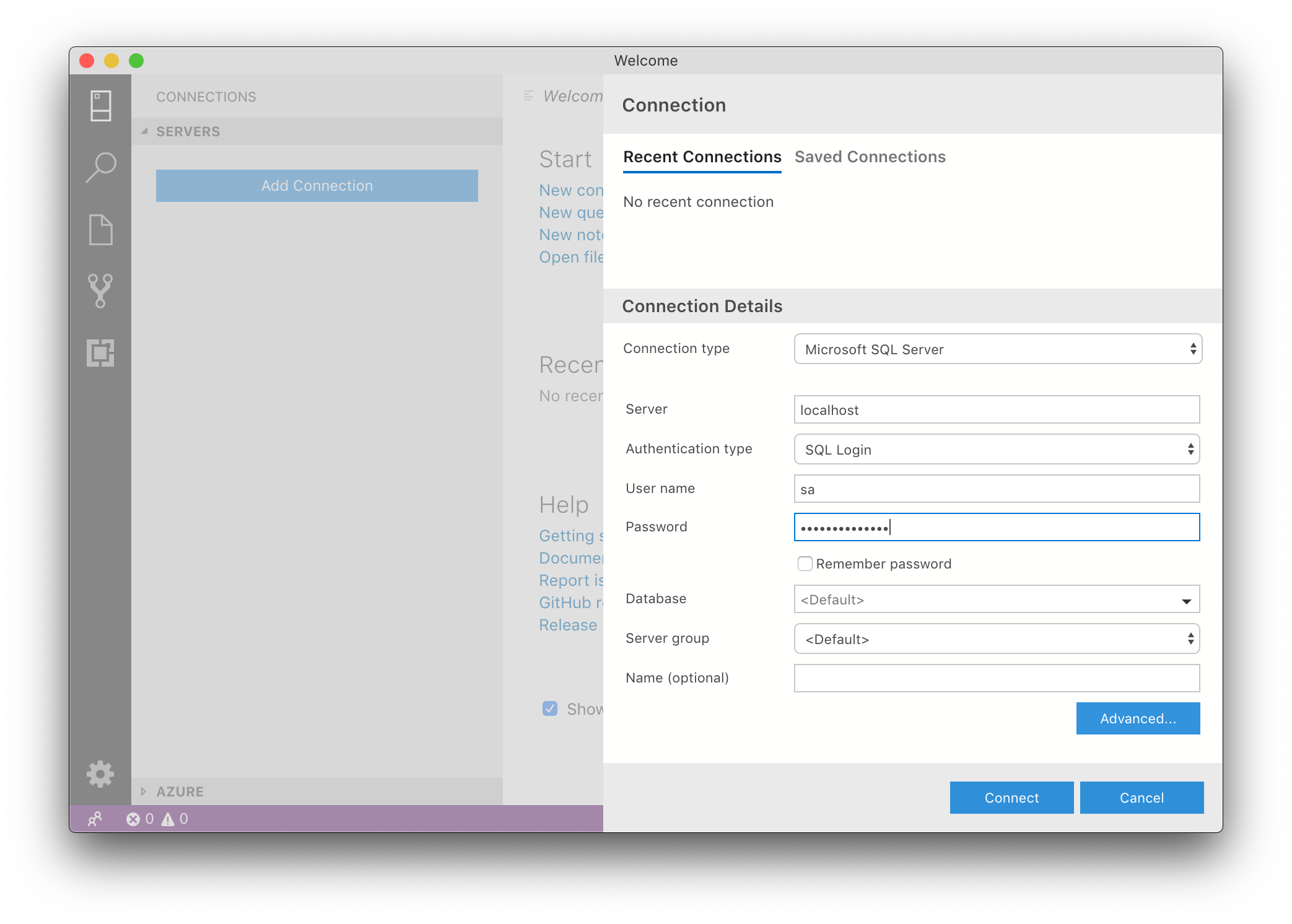
After connecting, select cmd + N to begin writing and sending SQL commands.
Create Database
Within Azure Data Studio, it’s easy to write and test code. The Washington Post compiled a data set of arrest stats at NFL games, which can be loaded into the localhost server. The first step is to create a database, called here “arrestDb”. Execute the command pressing F5 or selecting Run from the menu.
use master
go
if exists
    (select 1 from sys.databases where name = 'arrestsDb')
    drop database arrestsDb
    go
create database arrestsDb
go
use arrestsDb
go
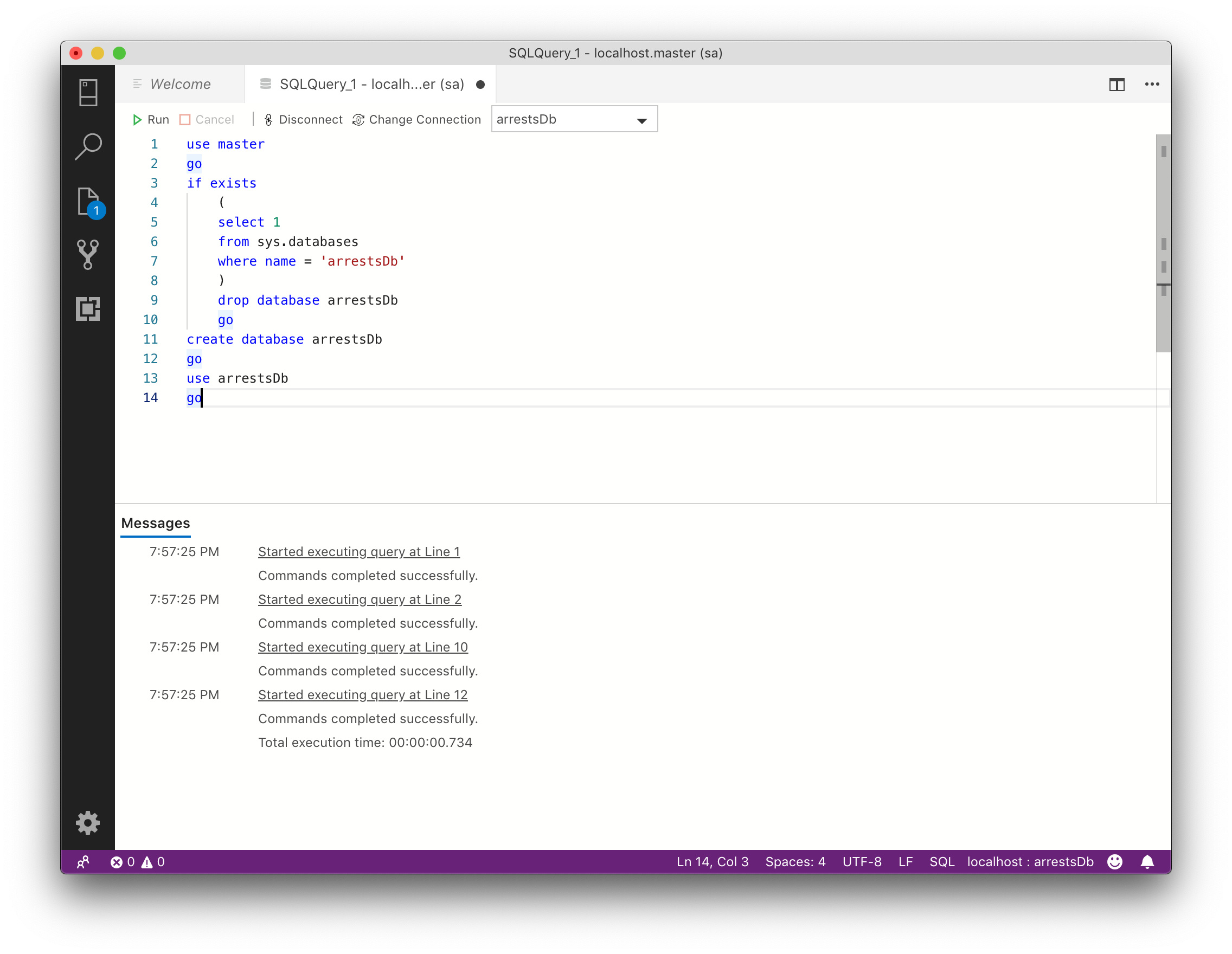
Create Table
To actually store individual datasets, a table is needed. From the NFL Arrest data, a table is needed. Create one named “stadiumArrests” with these commands. The column types listed after the column names will
CREATE TABLE dbo.stadiumArrests
(season int
    , weekNumber int
    , dayOfWeek varchar(10)
    , gameTime varchar(20)
    , homeTeam varchar(50)
    , awayTeam varchar(50)
    , homeScore int
    , awayScore int
    , otFlag varchar(2)
    , arrests int
    , divisionGame varchar(1)
)

The actual data can be inserted into the table in a variety of ways, here using insert into and select commands for five rows of data.
insert into dbo.stadiumArrests select 2011 season, 1 weekNum, 'Sunday' dayOfWeek, '1:15 PM' gameTime, 'Arizona' homeTeam, 'Carolina' awayTeam, 28 homeScore, 21 awayScore, null otFlag, 5 arrests, 'n' divisionGame;
insert into dbo.stadiumArrests select 2011 season, 4 weekNum, 'Sunday' dayOfWeek, '1:05 PM' gameTime, 'Arizona' homeTeam, 'New York Giants' awayTeam, 27 homeScore, 31 awayScore, null otFlag, 6 arrests, 'n' divisionGame;
insert into dbo.stadiumArrests select 2011 season, 7 weekNum, 'Sunday' dayOfWeek, '1:05 PM' gameTime, 'Arizona' homeTeam, 'Pittsburgh' awayTeam, 20 homeScore, 32 awayScore, null otFlag, 9 arrests, 'n' divisionGame;
insert into dbo.stadiumArrests select 2011 season, 9 weekNum, 'Sunday' dayOfWeek, '2:15 PM' gameTime, 'Arizona' homeTeam, 'St. Louis' awayTeam, 19 homeScore, 13 awayScore, 'OT' otFlag, 6 arrests, 'y' divisionGame;
insert into dbo.stadiumArrests select 2011 season, 13 weekNum, 'Sunday' dayOfWeek, '2:15 PM' gameTime, 'Arizona' homeTeam, 'Dallas' awayTeam, 19 homeScore, 13 awayScore, 'OT' otFlag, 3 arrests, 'n' divisionGame;
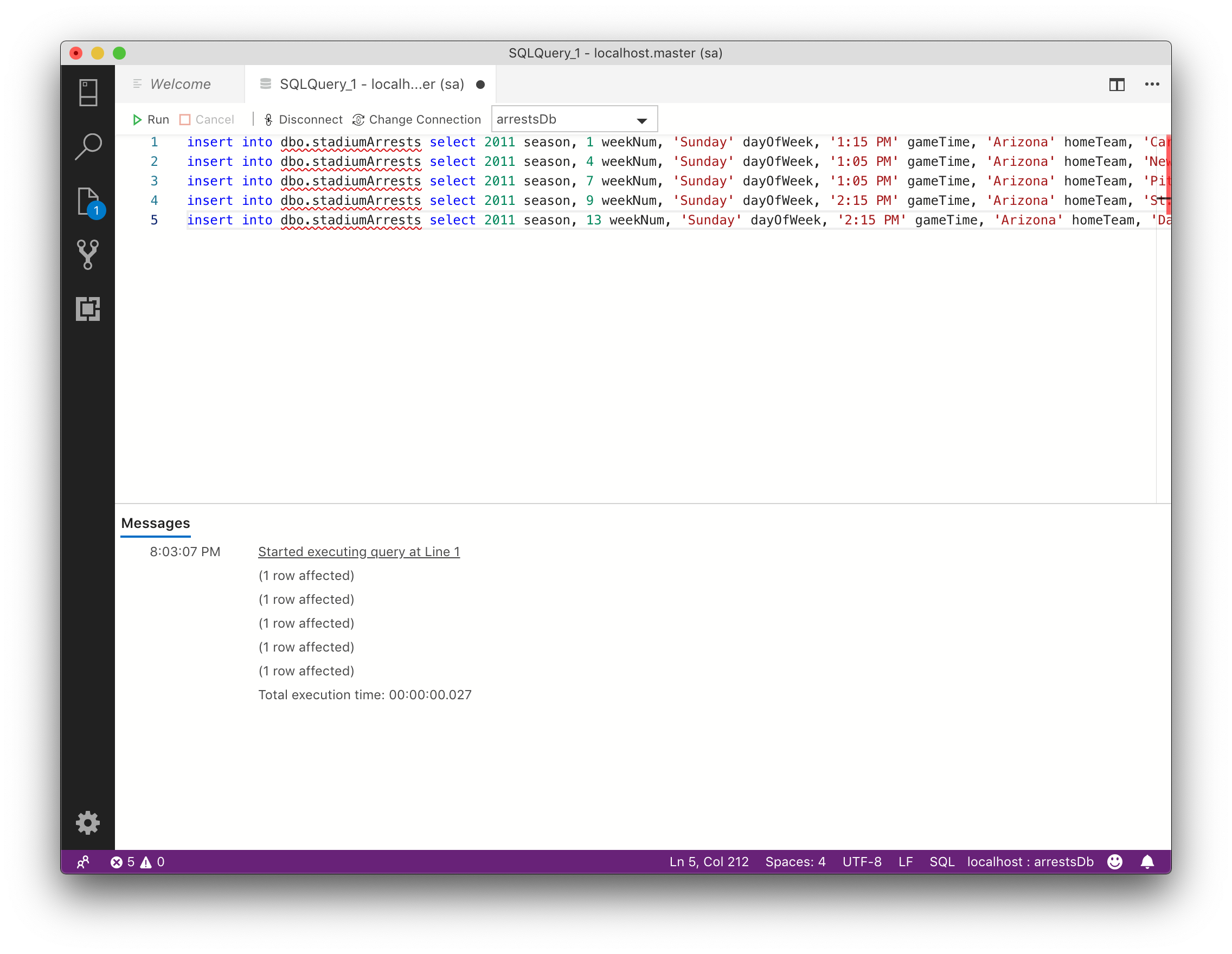
Data can now be selected and the database is fully functional! Add more tables, create schema and begin using this versatile and powerful tool from your Mac.
select * from dbo.stadiumArrests;

Start Docker Container
The docker container that enables SQL may go down if you log out / restart your machine, meaning a connection cannot be made to run commands. Get it going again by running the following command in Terminal. When listing all containers, the container should have a status of “Up”
docker start SqlExpress
Remove Docker Container
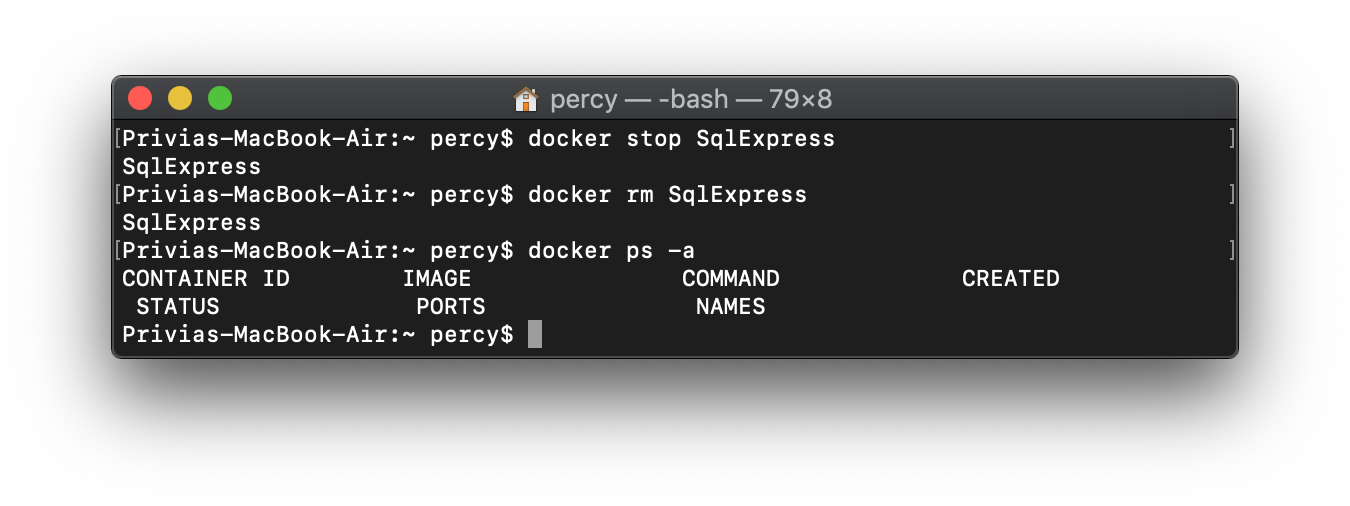
You may want to remove your Docker container that runs your SQL environment from for a variety of reasons. This can be done simply from the command prompt. When listing the active containers, SqlExpress will not display.
docker stop SqlExpress # only required if the container is running
docker rm SqlExpress
docker ps -a
Special thanks to Microsofts Documentation Guide for SQL Server with Docker and Kaggle for bringing me to the Washington Post arrests at NFL stadiums dataset.
 Realms of Pearl