There are many great tools for connecting to Microsoft SQL Server, but most lack convenient and scalable features for importing and exporting data from the server. With the help of R and a few of its packages, loading data from any type of data source to a SQL Server instance.
Get Set Up with R
Obviously R is required for this setup, so if it’s not ready installed, the software is available here. RStudio, an interface for R, is also recommended as it’s much more user friendly for writing R code. After installing R (and RStudio) you can open the interface of your choosing and begin writing R code.
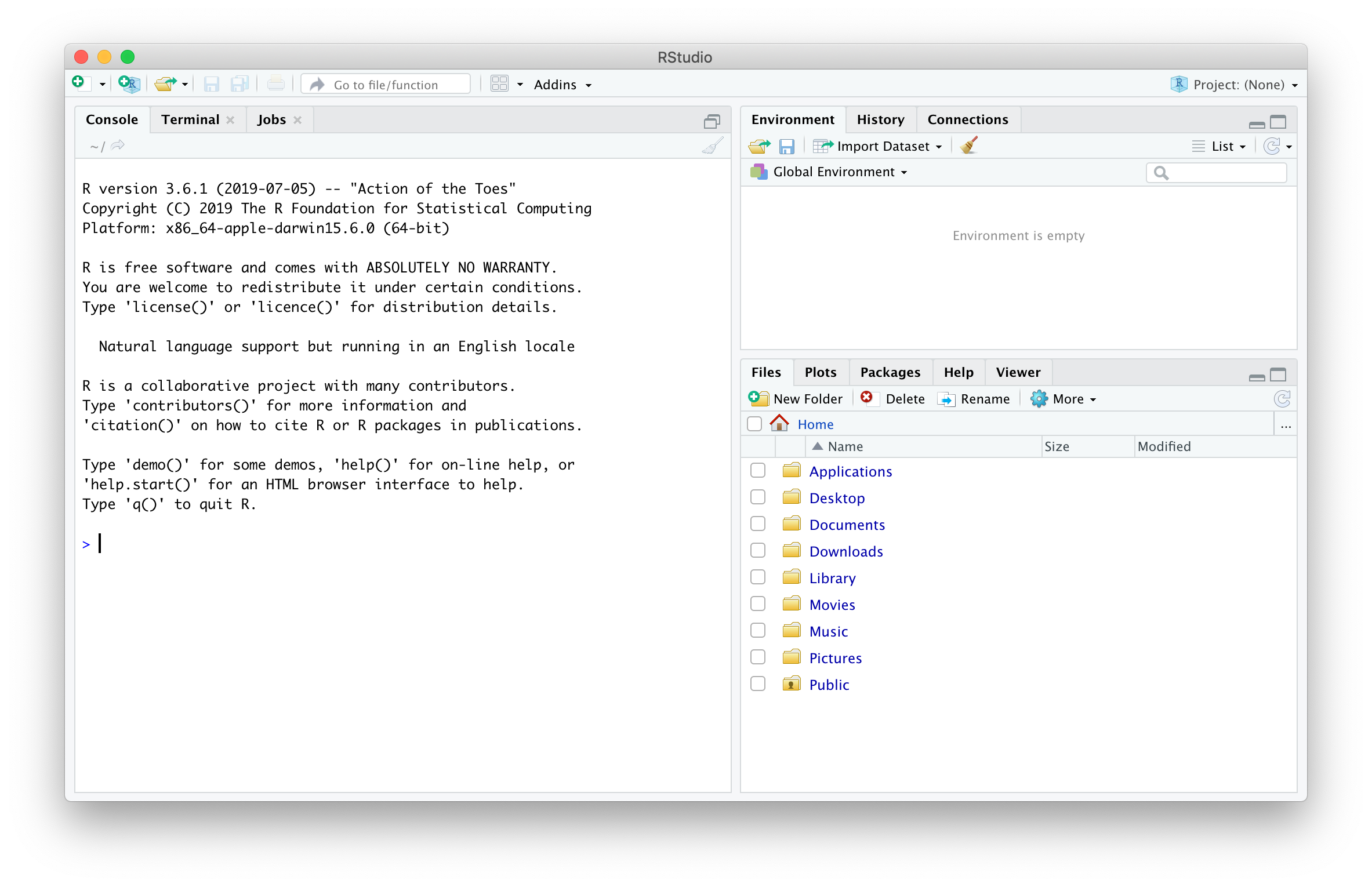
RStudio 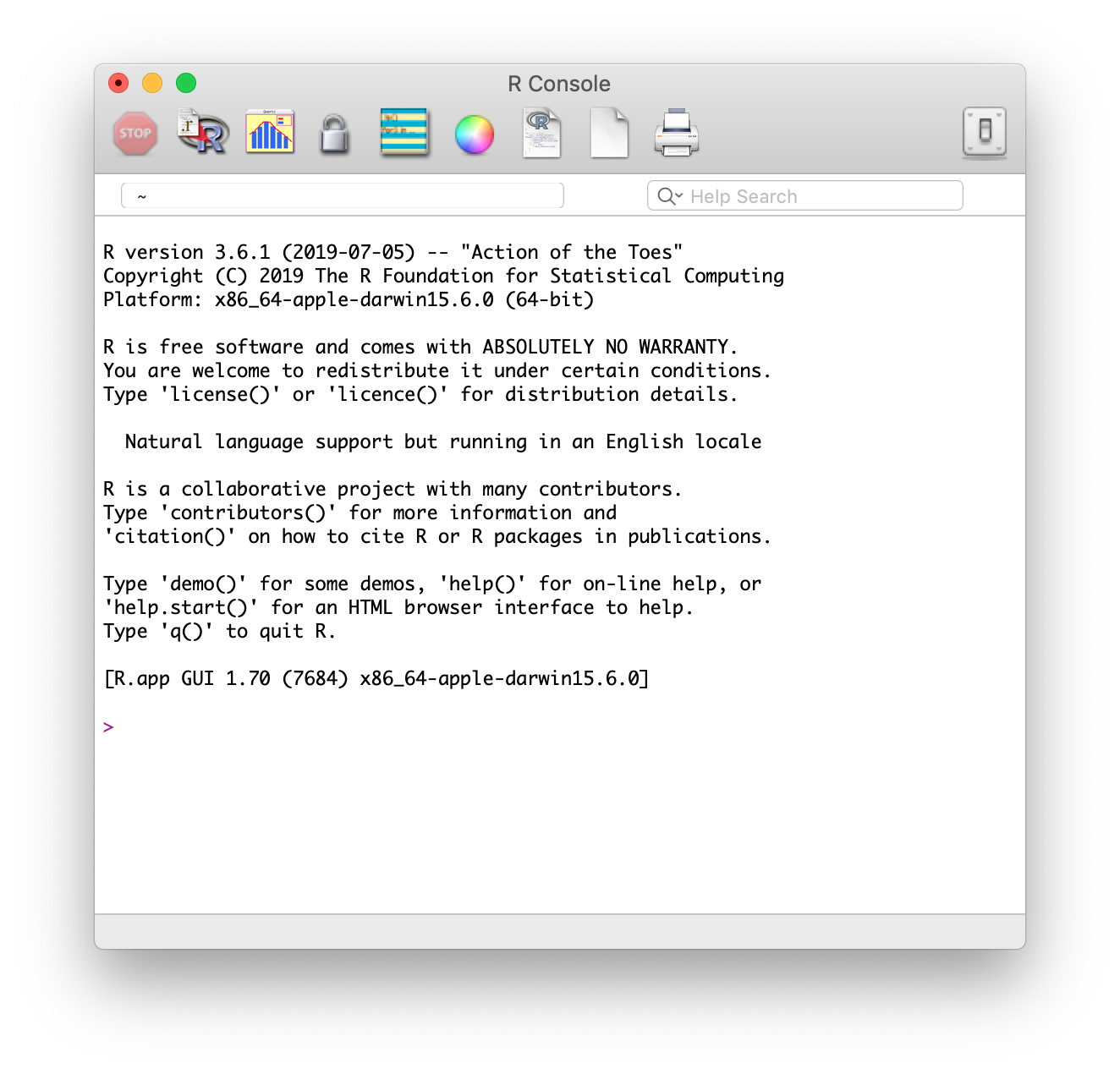
R
Installin and Callin Packages
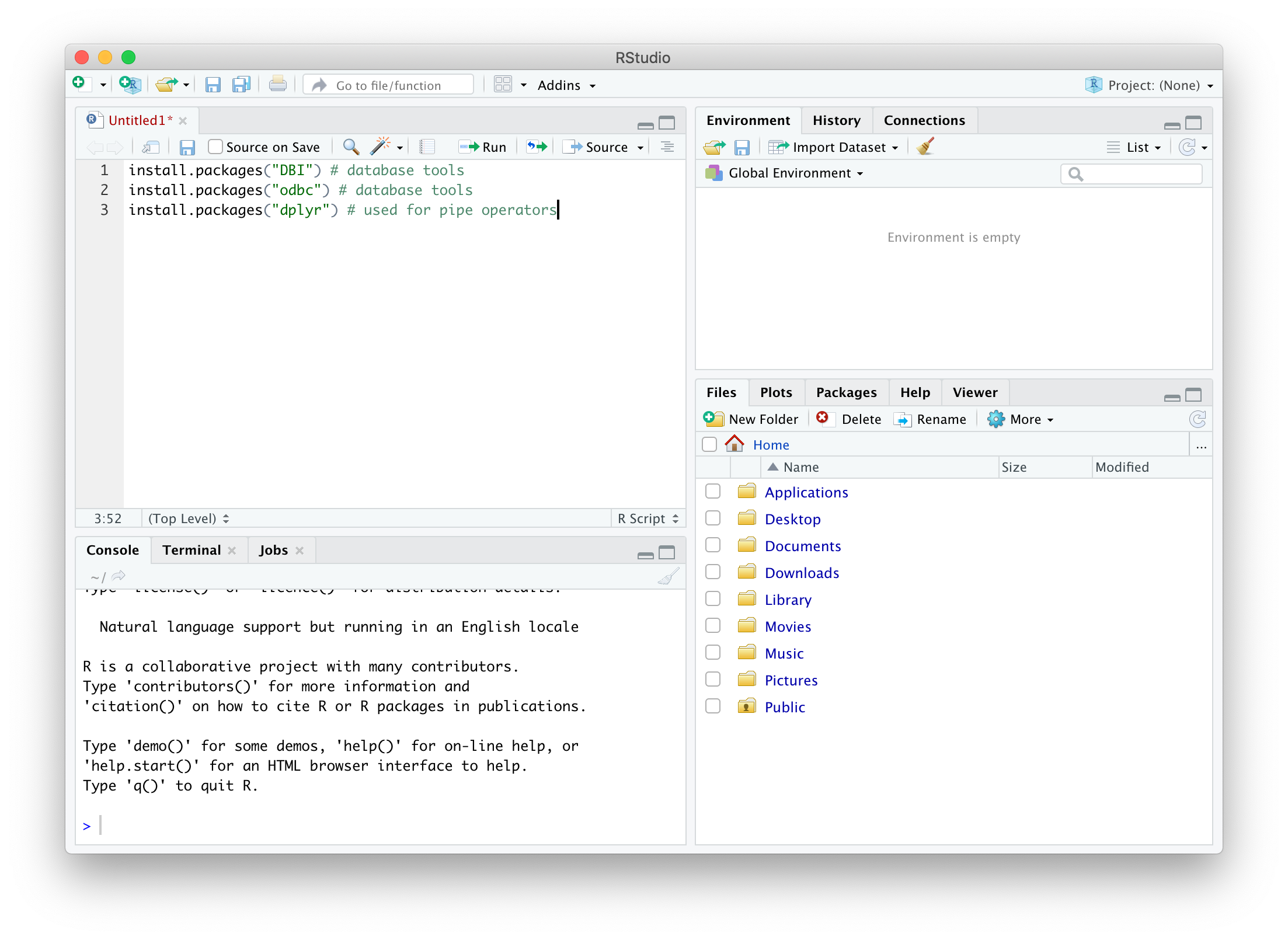
R has a robust base set of commands, but to do some more advanced things, additional packages are need. Packages are generally available through an R repository that can be connected to for easy downloads through a few commands. In order to connect to SQL, a few packages must be installed on the computer. The install.packages() command only needs to be used once per computer, while the library() command must be used in each section that the package is required.
install.packages("DBI") # database tools
install.packages("odbc") # database tools
install.packages("dplyr") # used for pipe operators
library("DBI") # database tools
library("odbc") # database tools
library("dplyr") # used for pipe operators
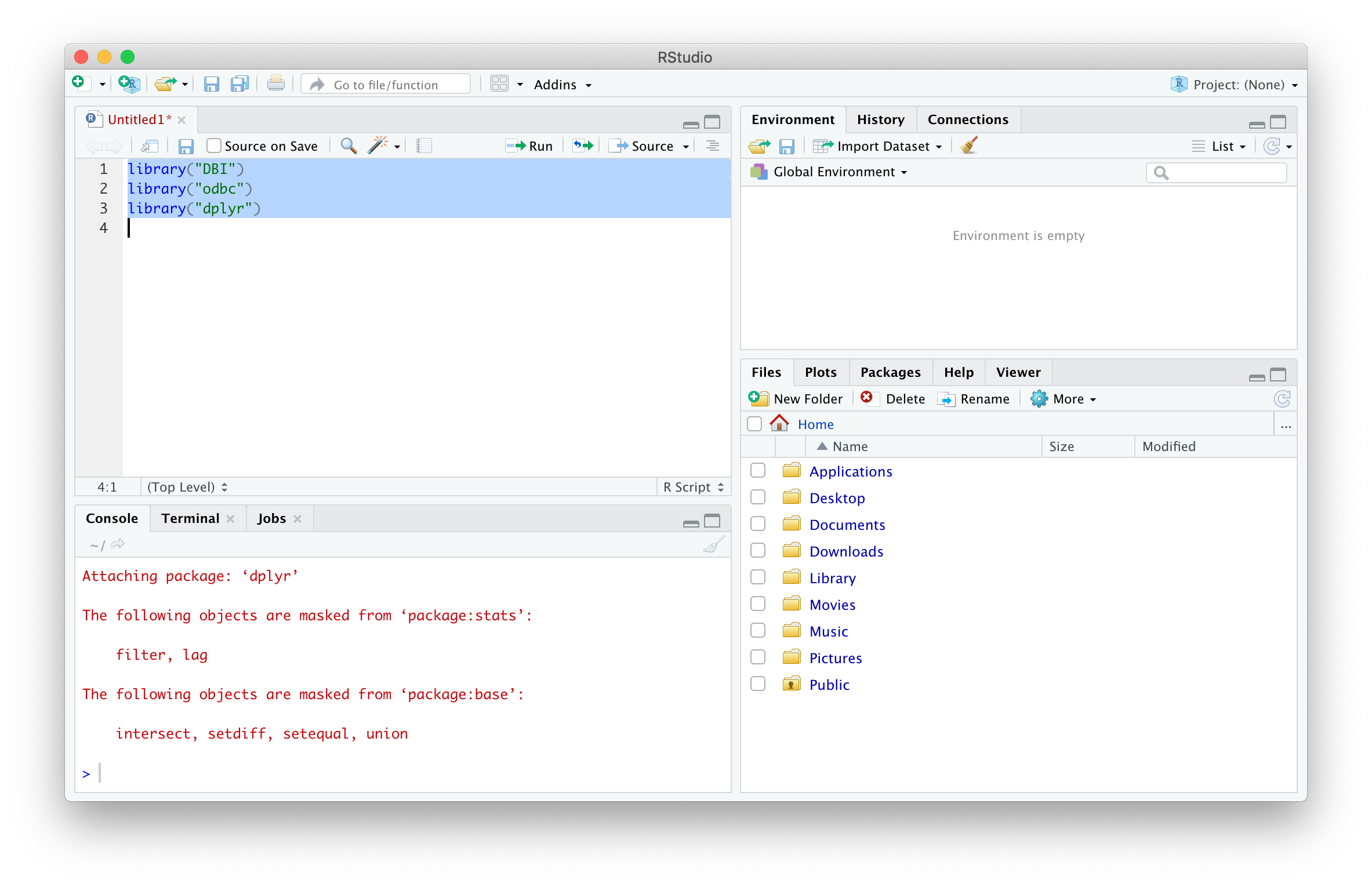
You should now be all set to start writing code using these packages!
Writing a Function
Functions are one of R’s best tools for repetitive tasks and because you will likely connect to SQL more than once, it is nice to have here. Using some commands from the packages below, a function to connect to SQL can be made, named sqlPlug(), specifically to an existing database named arrestDb. The function is used to create an odbc connection called “con”, which is authenticated using pop up prompts that don’t get saved to the environment, which is important for password security.
sqlPlug <- function() {
  dbConnect(odbc::odbc(),
            Driver = "ODBC Driver 17 for SQL Server", # mac driver
            Server = "localhost",
            Database = "arrestsDb",
            UID = rstudioapi::showPrompt('Login', 'SQL Server User ID', ''), # does not get saved to environment
            PWD = rstudioapi::askForPassword('SQL Server Password')) # dont get saved to environment
}
con = sqlPlug()

If successful, typing con in the console will show the details of the connection:

Pulling from SQL
Now that the connection has been made, any type of SQL command can be sent using syntax from the DBI package. One of the advantages of R is being able to export to a file without having to copy / paste or use a wizard. To simplify this task that may be done frequently, a function can be made – in this case, called sqlGrab().
sqlGrab <- function(con, queryText) {
  dbSendQuery(con, queryText) %>% dbFetch()
}
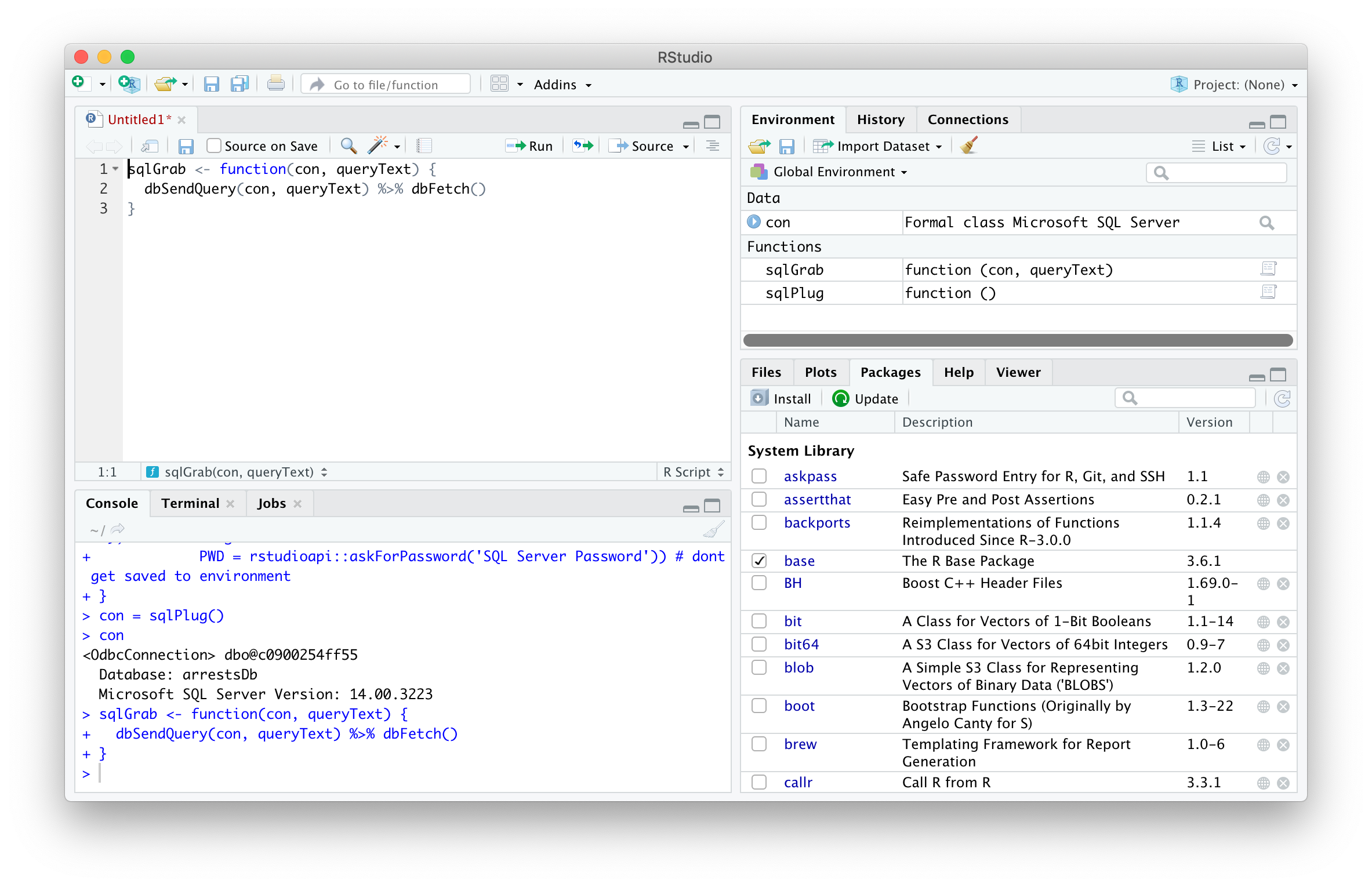
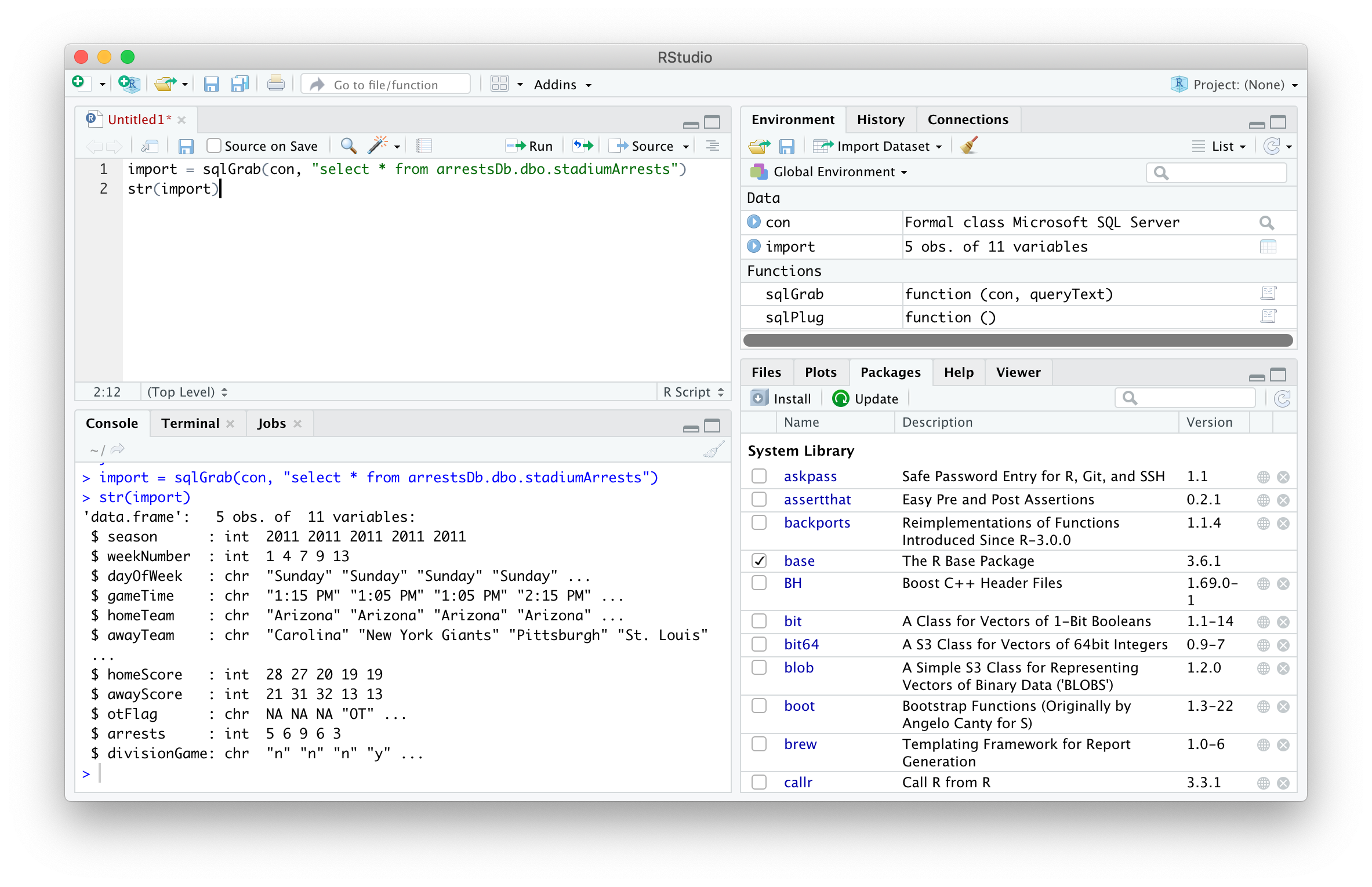
The sqlGrab function sends a query to the serve and saves the results to your R instance. The two arguments of the function are (a) the local host connection called con and (b) the query to pull all results from a table called stadiumArrests. The results of the query will be assigned to data frame named import.
import = sqlGrab(con, "select * from arrestsDb.dbo.stadiumArrests")
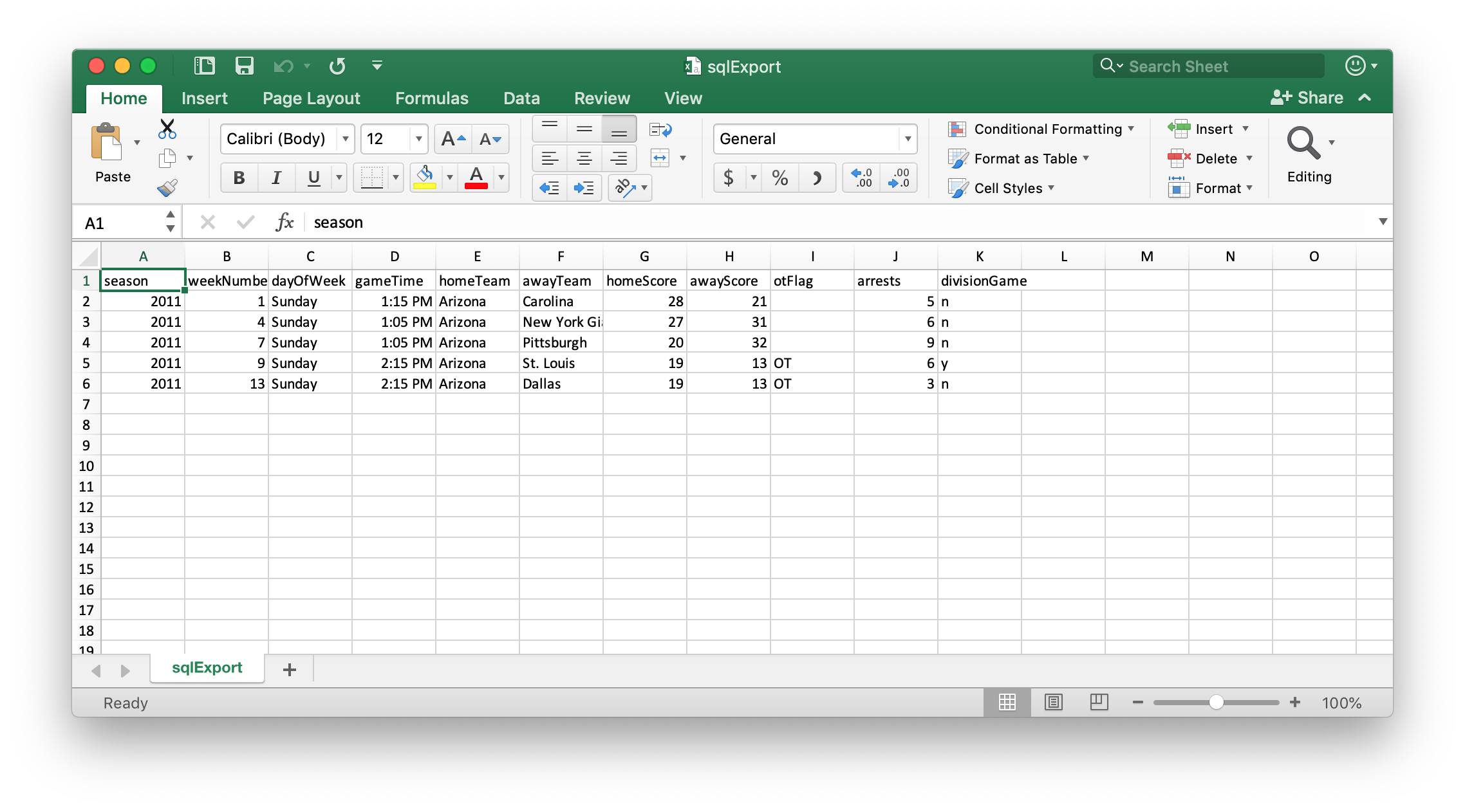
Now that the SQL results are in the R session, they can be easily exported, here to the Downloads folder in CSV format.
write.csv(import, '/Users/percy/Downloads/sqlExport.csv', row.names = F, na = '')

Pushing to SQL
The ability to write tables to a SQL Server database through R is a lifesaver for repetitive file uploads, as well as any file that requires significant cleansing before upload. The below code uses the dbWriteTable() function to create a new table from a CSV dataset.
fileImport = read.csv('/Users/percy/Downloads/nfl-arrests/arrests.csv', stringsAsFactors = F)
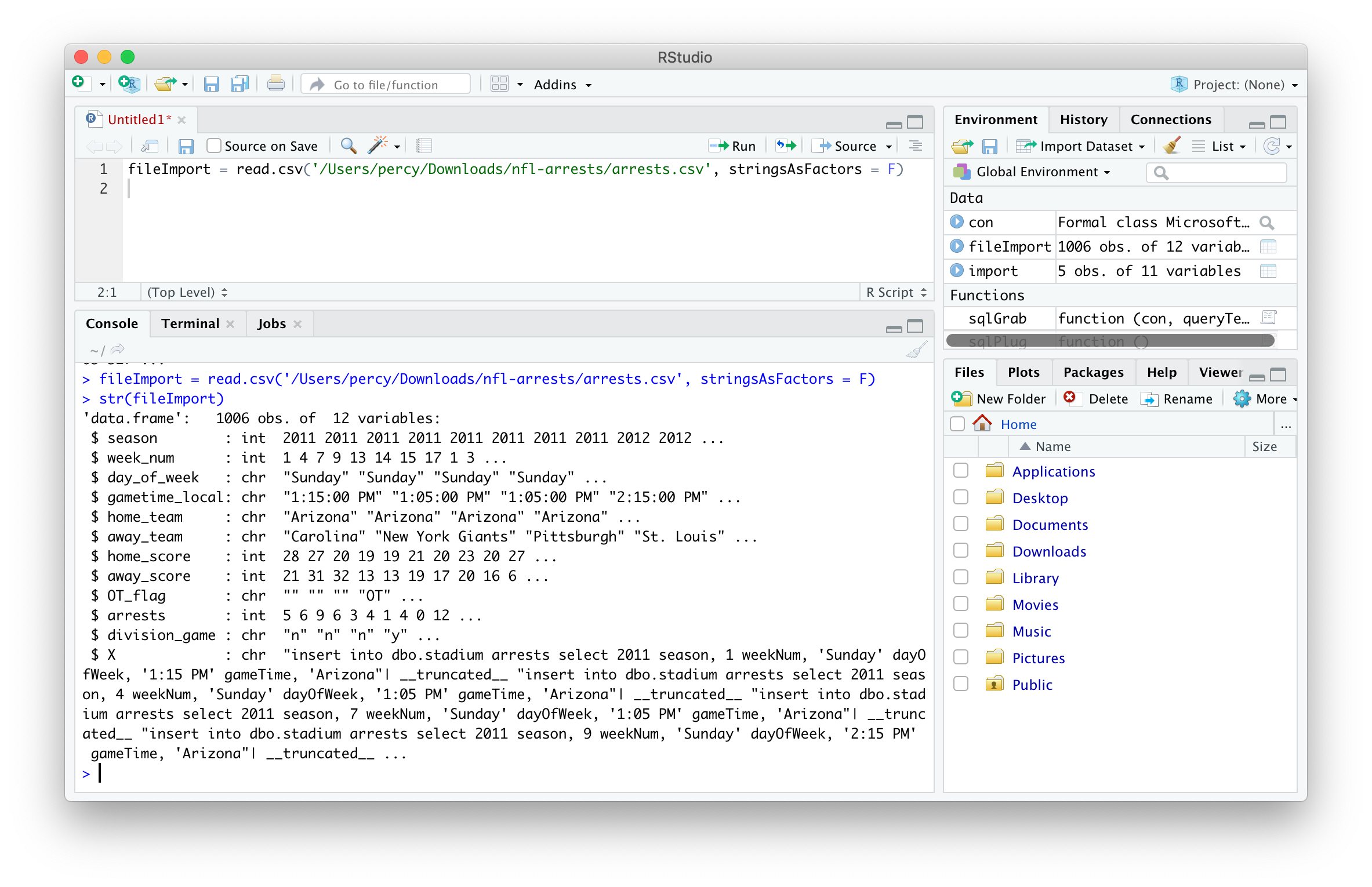
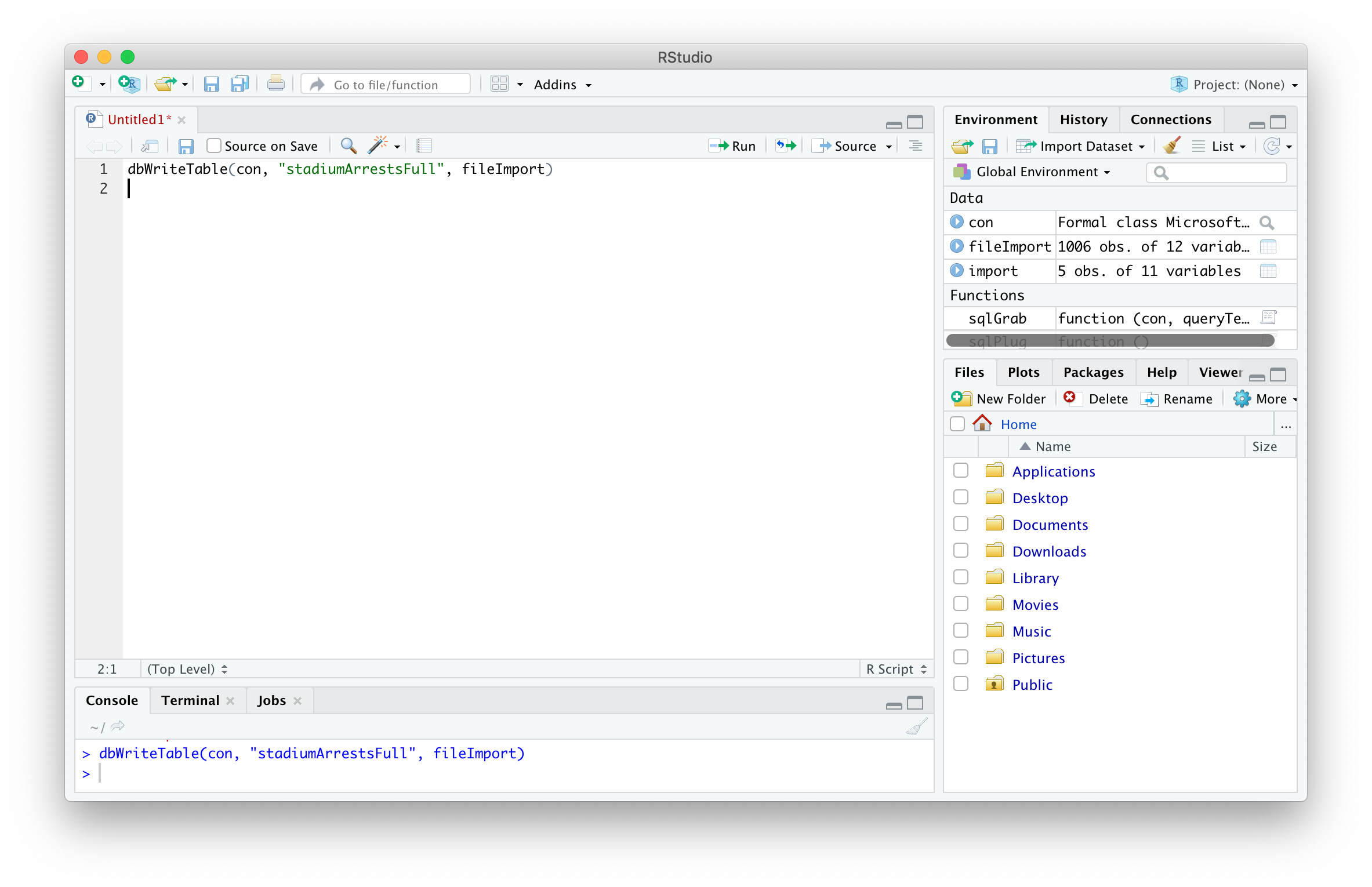
The dbWriteTable() function is used to specify the SQL Server database connection, the name of the table to be created in that database and the data written to that table.
dbWriteTable(con, "stadiumArrestsFull", fileImport)
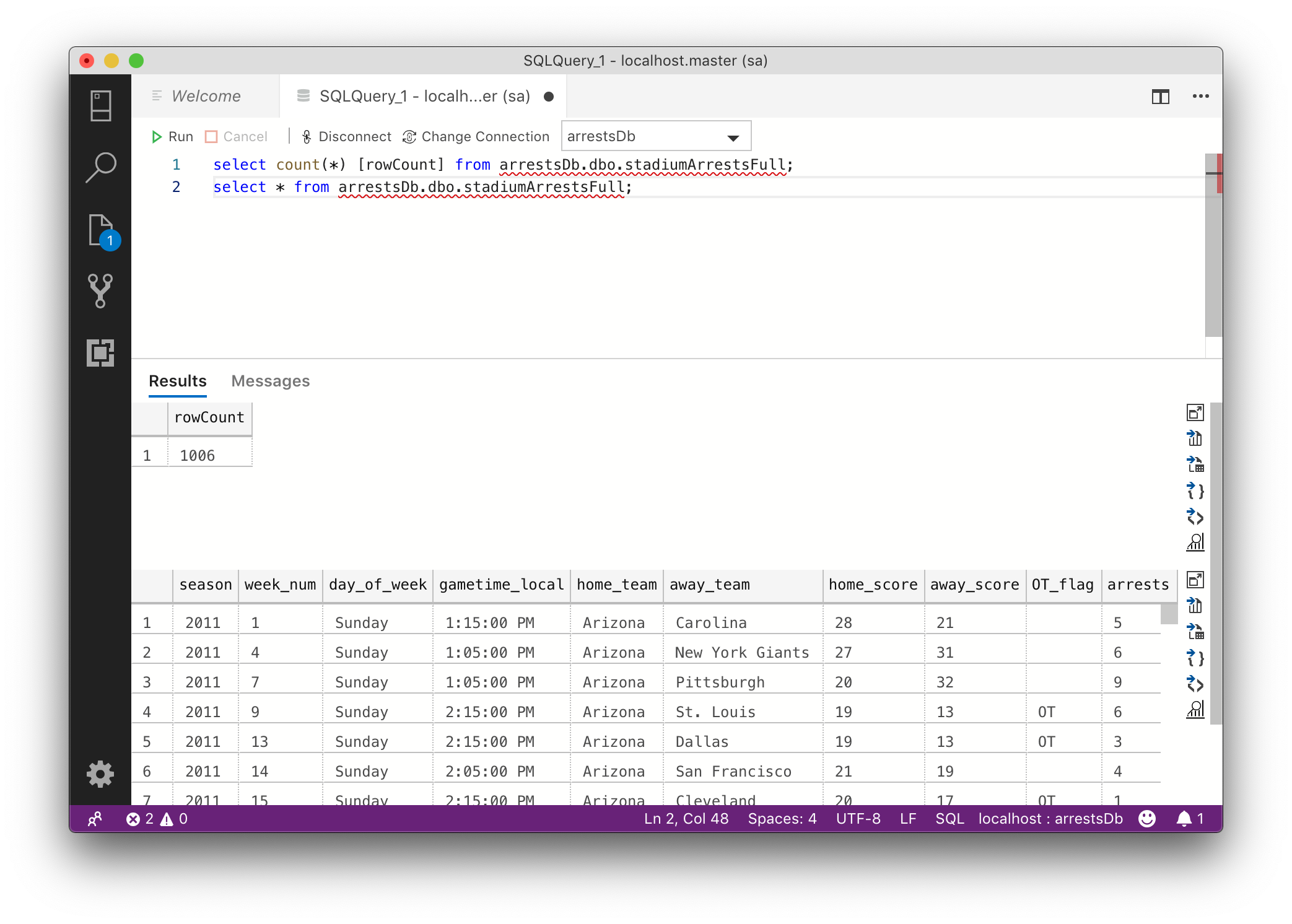
When calling the new table using the sqlGrab() function or another interface, the results should display in the same format as the R dataframe.
 Realms of Pearl