The conveniences of connecting to SQL through R are plentiful, but the human touch of entering SQL credentials remains in many cases. While it may only take a few seconds to enter credentials, some folks may want true automation, which requires a secure way for R to read these credentials. Using keyring package, a script can be written to reference credentials in the Mac Keychain to connect to SQL in R scripts. If Windows is your OS of choice, check this out.
Add Credentials to Keychain
The first step is making sure there are valid credentials to be read from the Keychain. The Keychain Access app can be found in Launchpad. Once open, select the + button in the top left corner. Enter the name of the new entry, in this case sqlExpress, followed by the SQL User Name in the Account Name field and the password in the Password field.
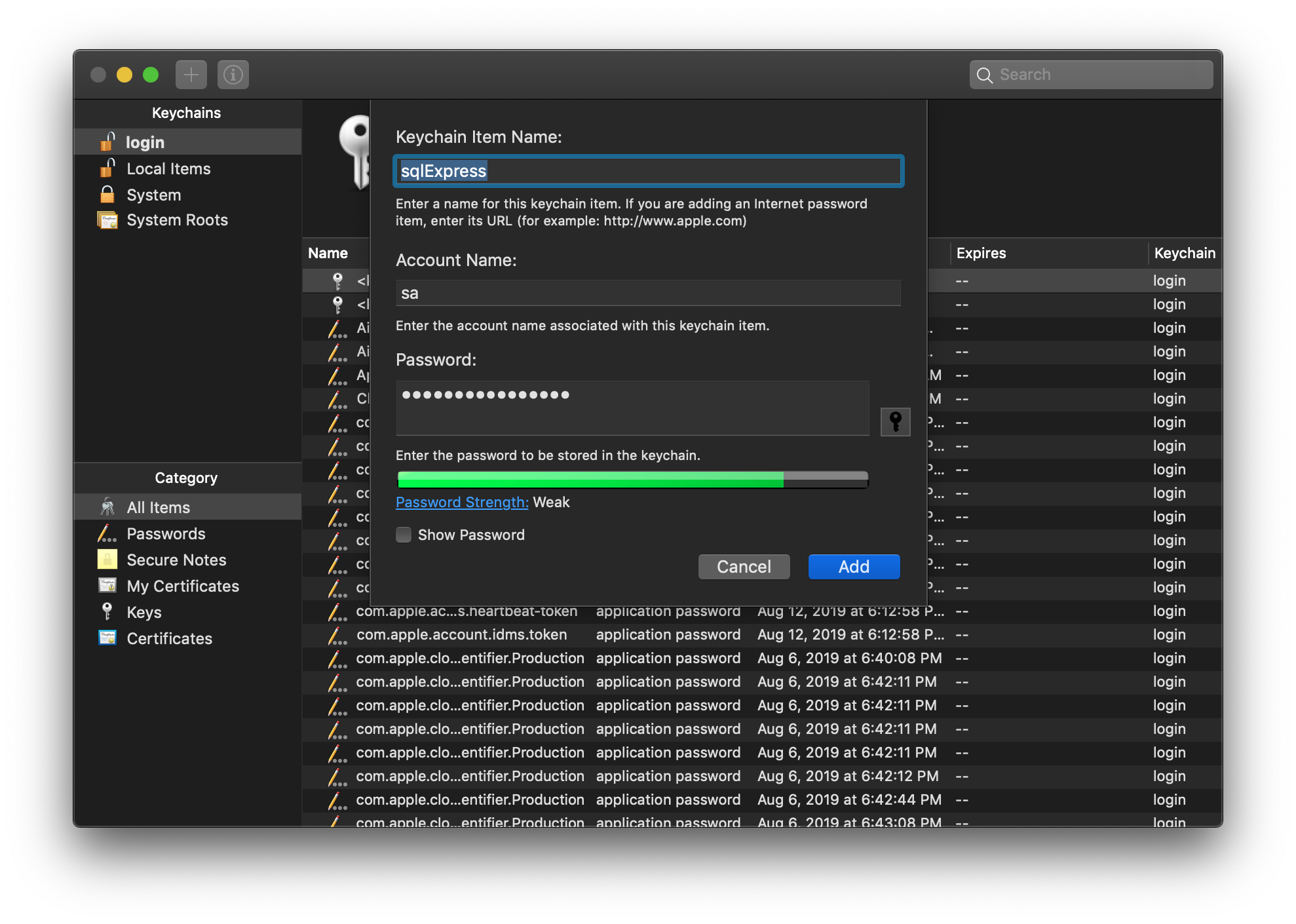
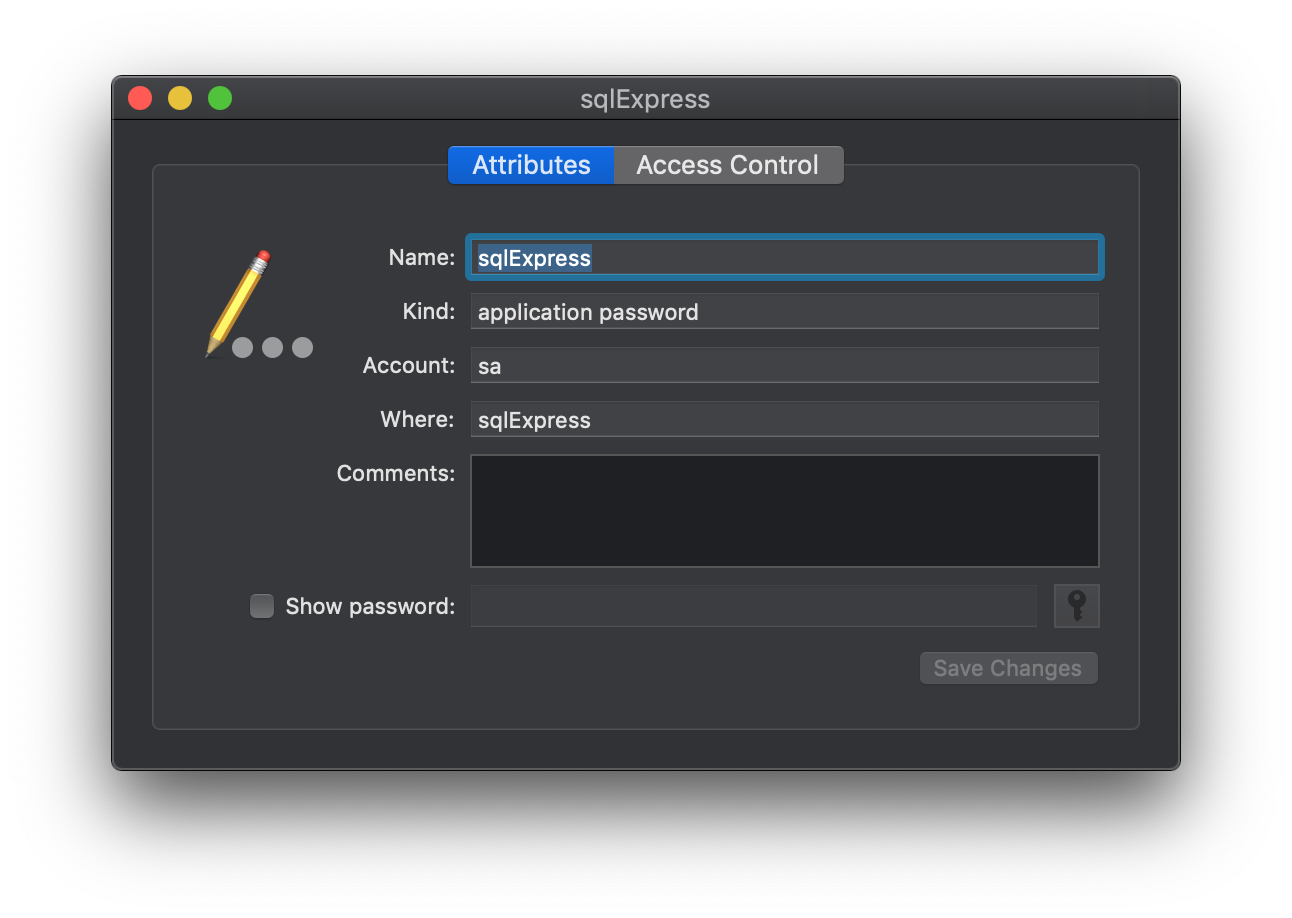
The new entry will now display in the list and can now be referenced in an R script. Note that anytime the SQL password changes, it must be updated here. This can be done by right clicking on the entry and selecting Get Info.
Connect to SQL in R
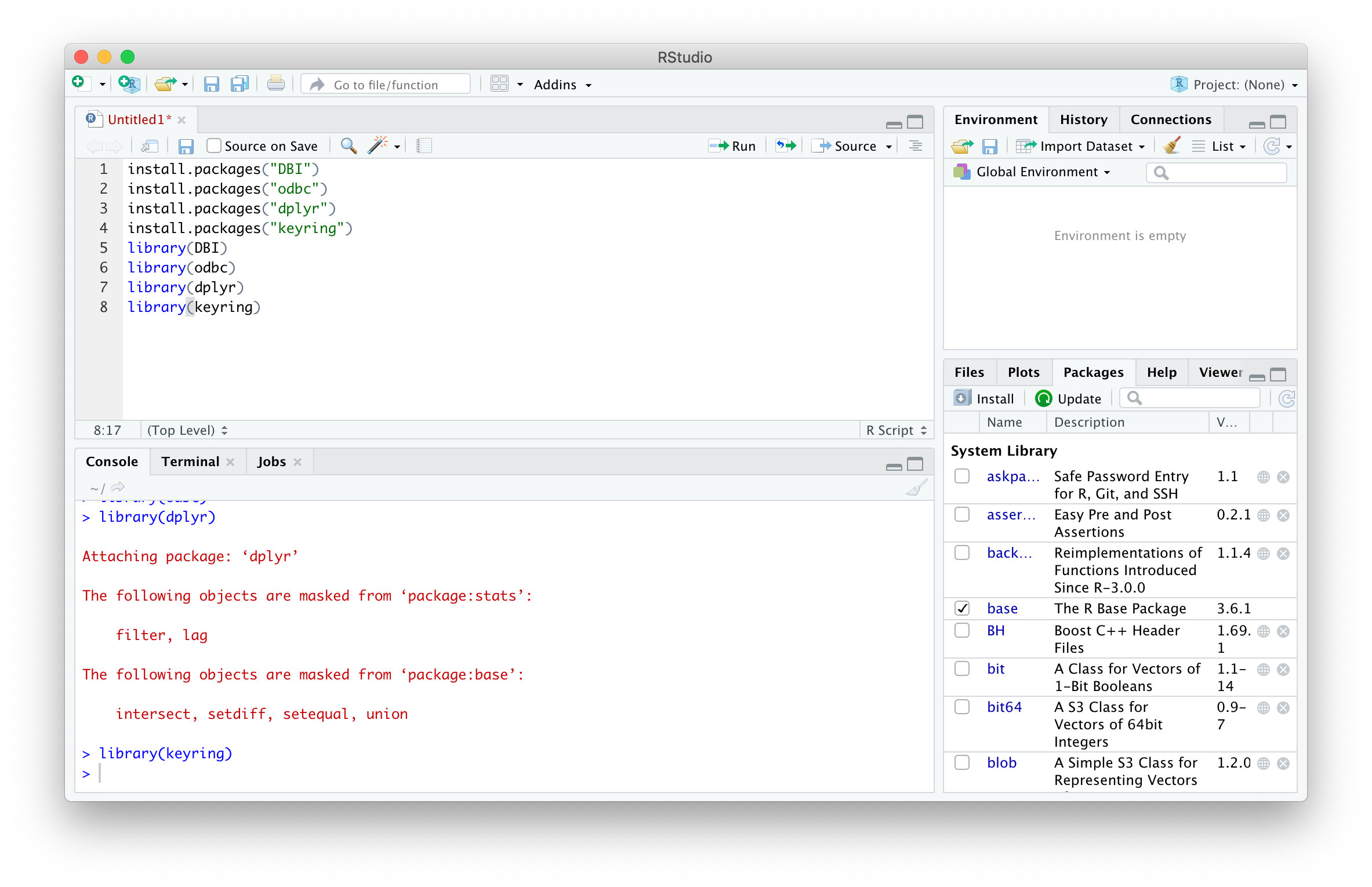
Using the foundations from writing a function to connect to SQL in R, a few commands from the keyring package can be used to reference the credentials created above. The first step is installing and referencing the required packages. Note that installation is only required once per version of R.
# required once per version of R
install.packages("DBI")
install.packages("odbc")
install.packages("dplyr")
install.packages("keyring")
# required each session of R
library(DBI)
library(odbc)
library(dplyr)
library(keyring)
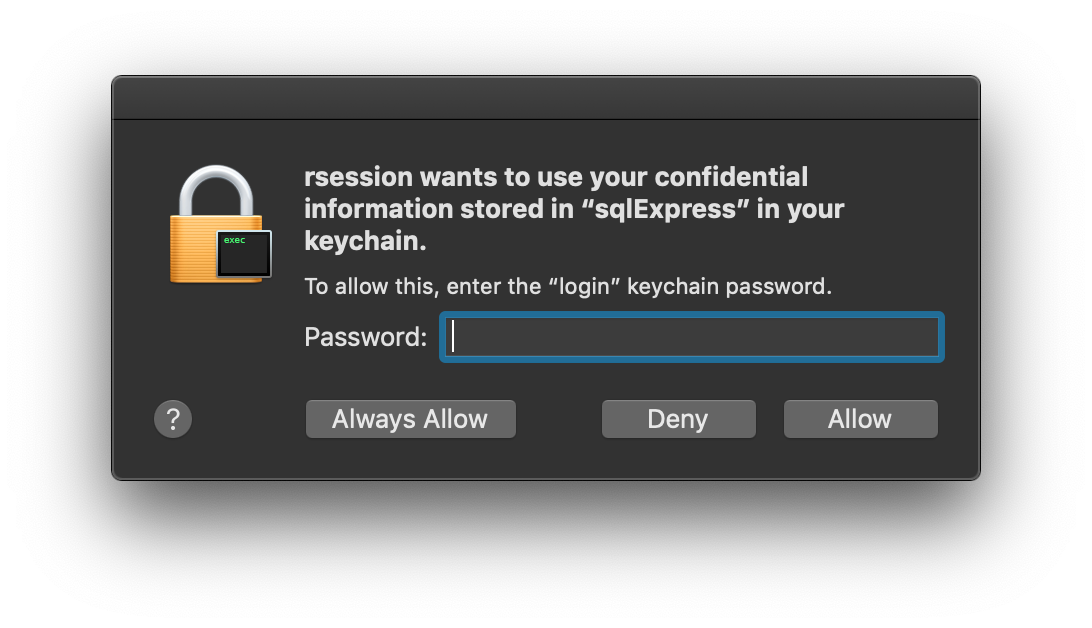
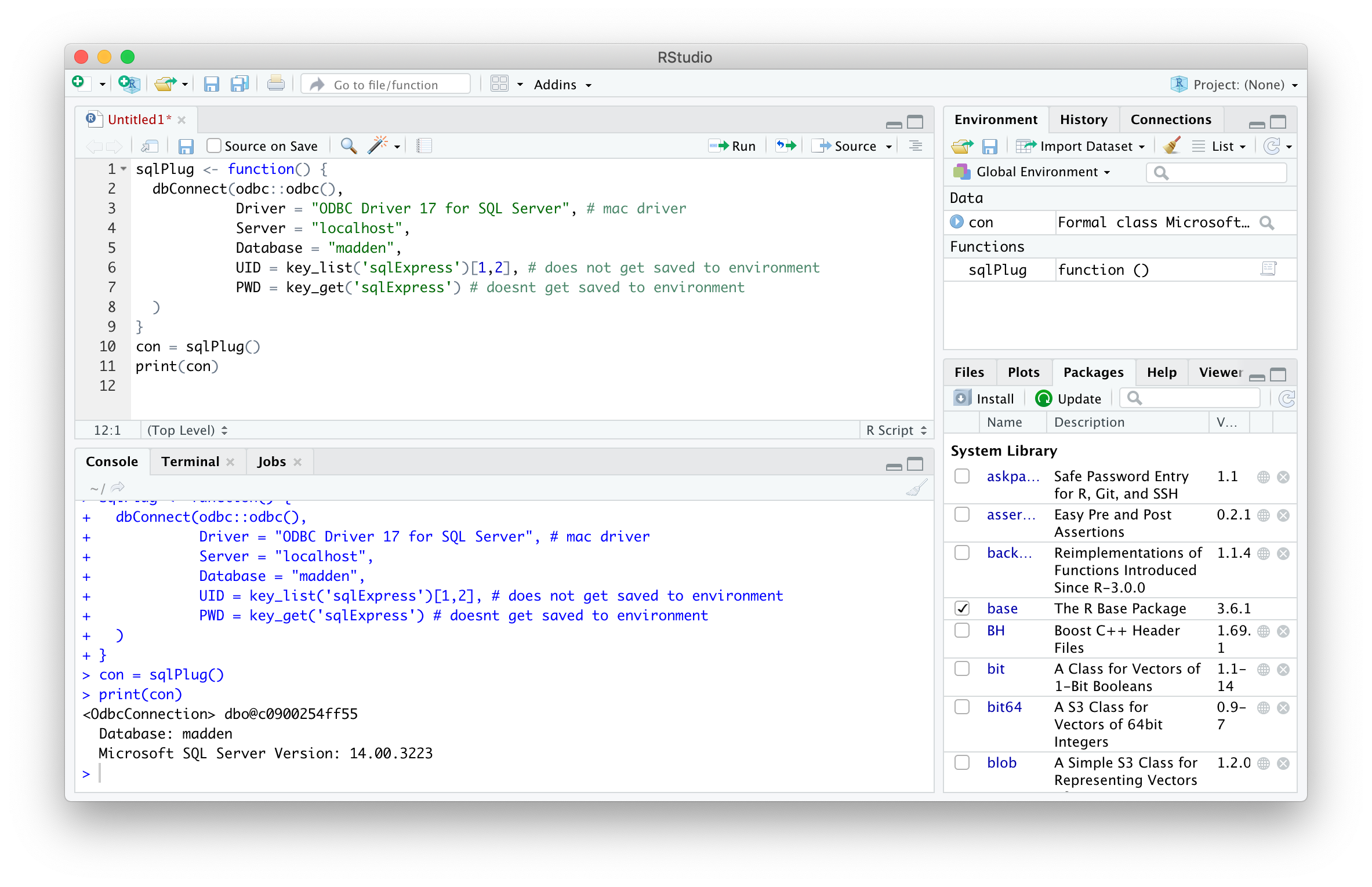
Adding the key_list() and key_get() functions to the SQL connection function allows for automatic connection to a server, in this case localhost. Note that the first time using key_get() function, you must enter your user login password to grant R to the keychain. Select Always Allow to avoid this step in the future.
sqlPlug <- function() {
  dbConnect(odbc::odbc(),
            Driver = "ODBC Driver 17 for SQL Server", # mac driver
            Server = "localhost",
            Database = "madden",
            UID = key_list('sqlExpress')[1,2], # does not get saved to environment
            PWD = key_get('sqlExpress') # doesnt get saved to environment
  )
}
con = sqlPlug() # makes connection
print(con) # prints connection details
g
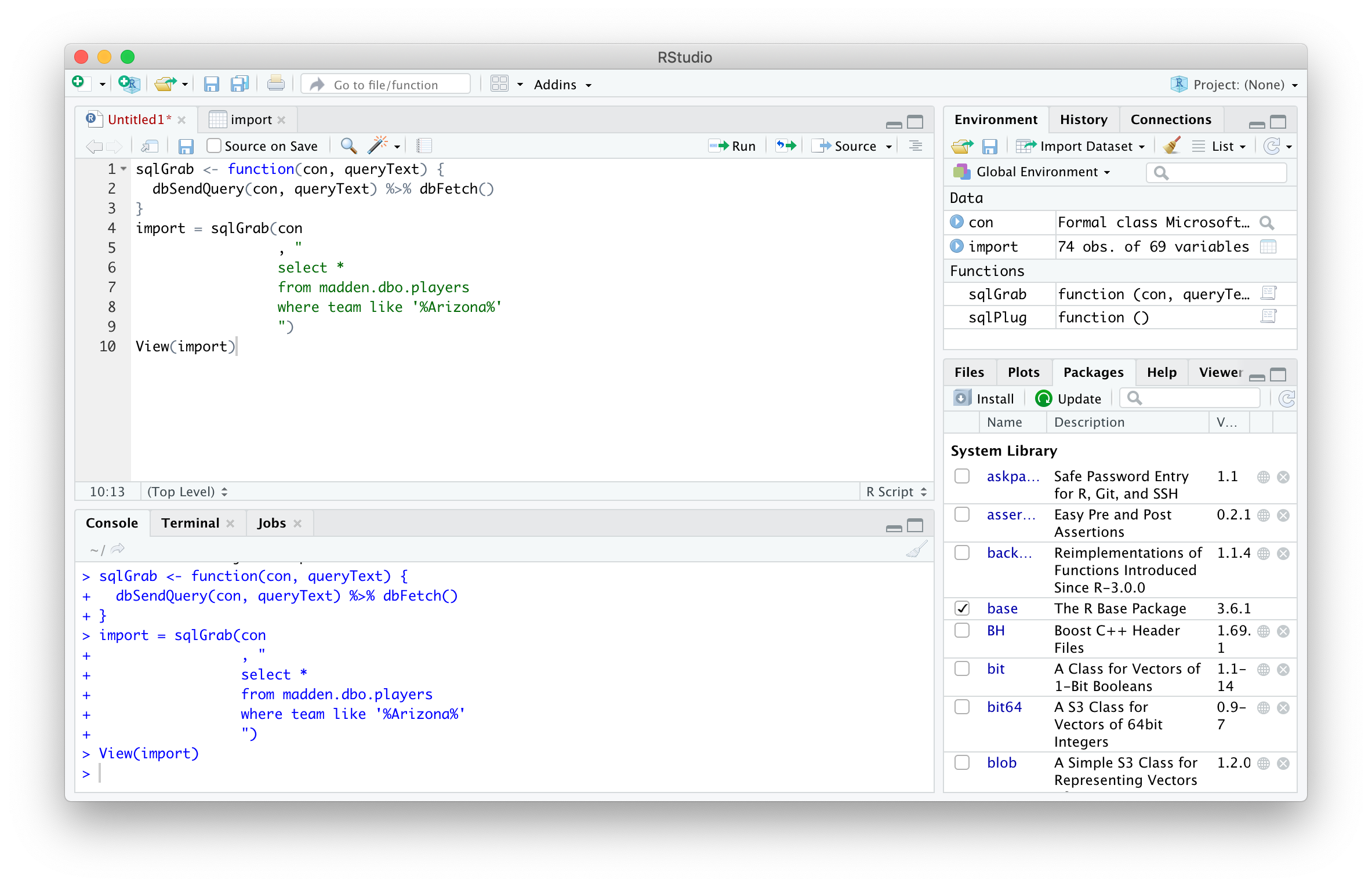
The sqlGrab() function can then be used to import data for further application, but any SQL command can be sent using the DBI package.
sqlGrab <- function(con, queryText) {
  dbSendQuery(con, queryText) %>% dbFetch()
}
import = sqlGrab(con
                 , "
                 select *
                 from madden.dbo.players
                 where team like '%Arizona%'
                 ")
View(import)
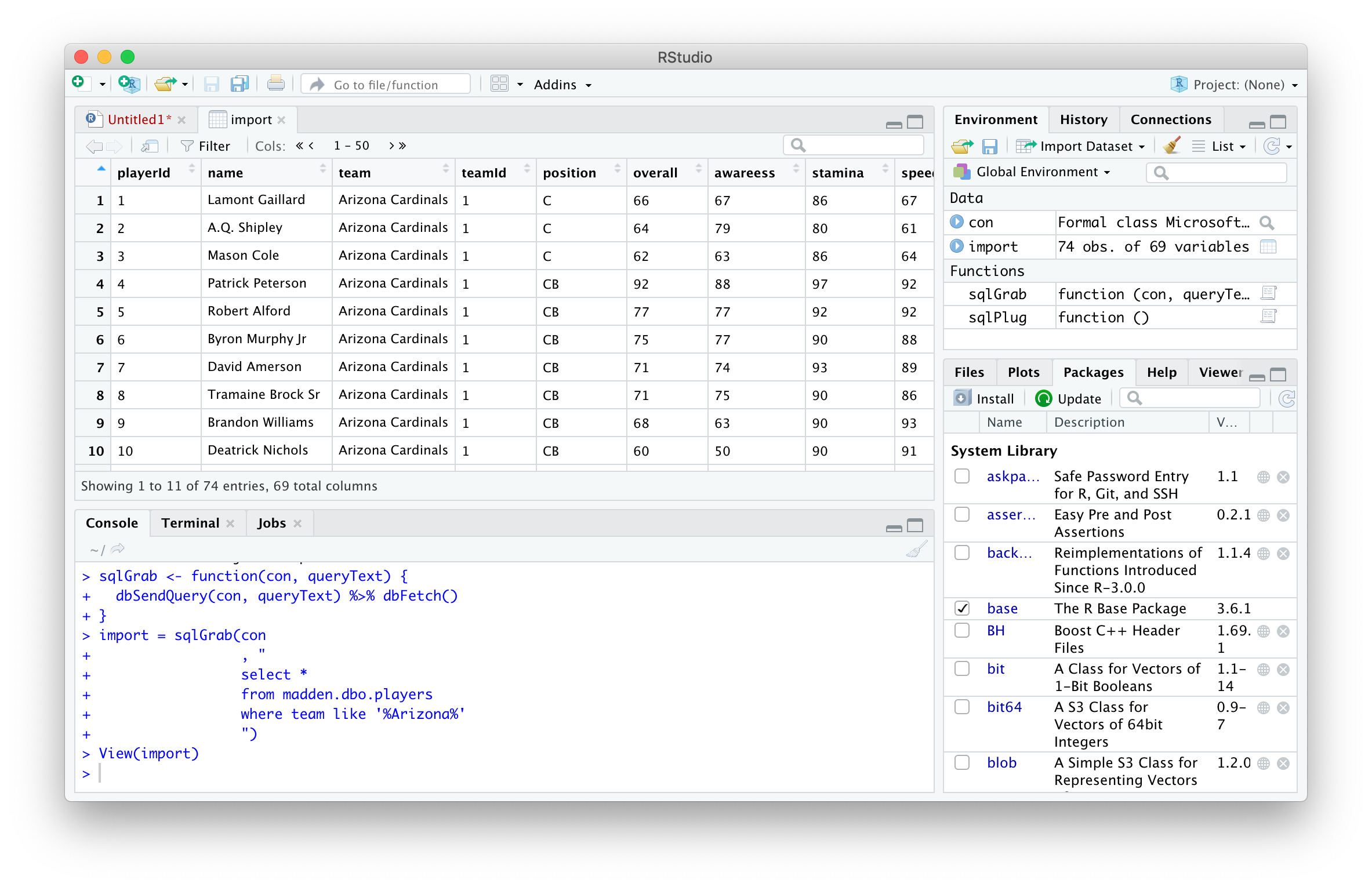
Special thanks to this Madden player database for the data. It looks like they have a bunch of other sports video game datasets so check it out.
 Realms of Pearl