Sometimes data dictionaries are skimpy or non-existent. In these cases, it’s sometimes helpful to list out the columns and tables for a database, or even for an entire instance to get a better idea of the structure.
List All Databases in a Connection
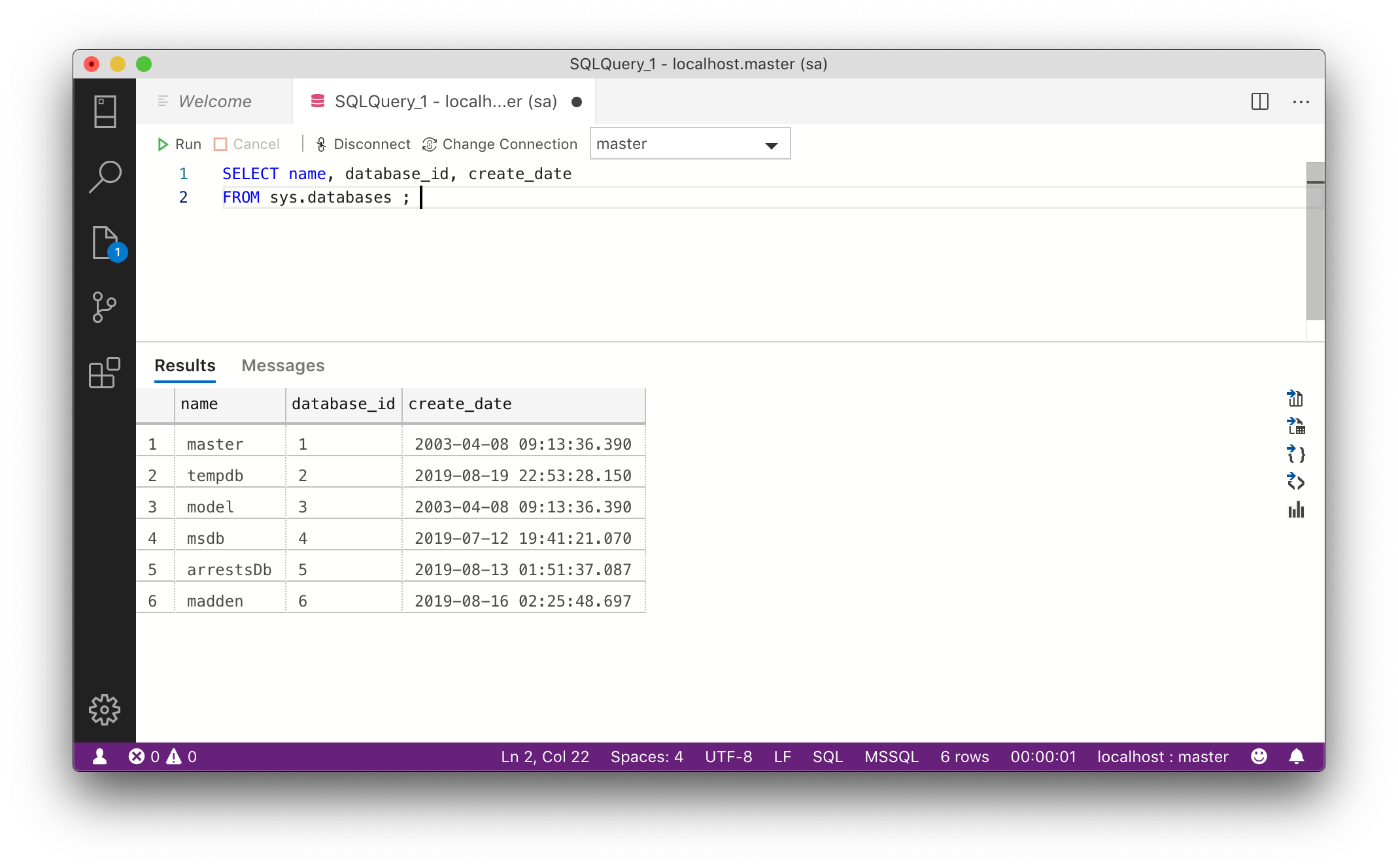
Before diving into specific tables and columns, it’s a good idea to get an idea of what databases exist in the connection. This example uses a localhost SQL Express server.
select name, database_id, create_date
from sys.databases;
List All Tables and Columns in a Database
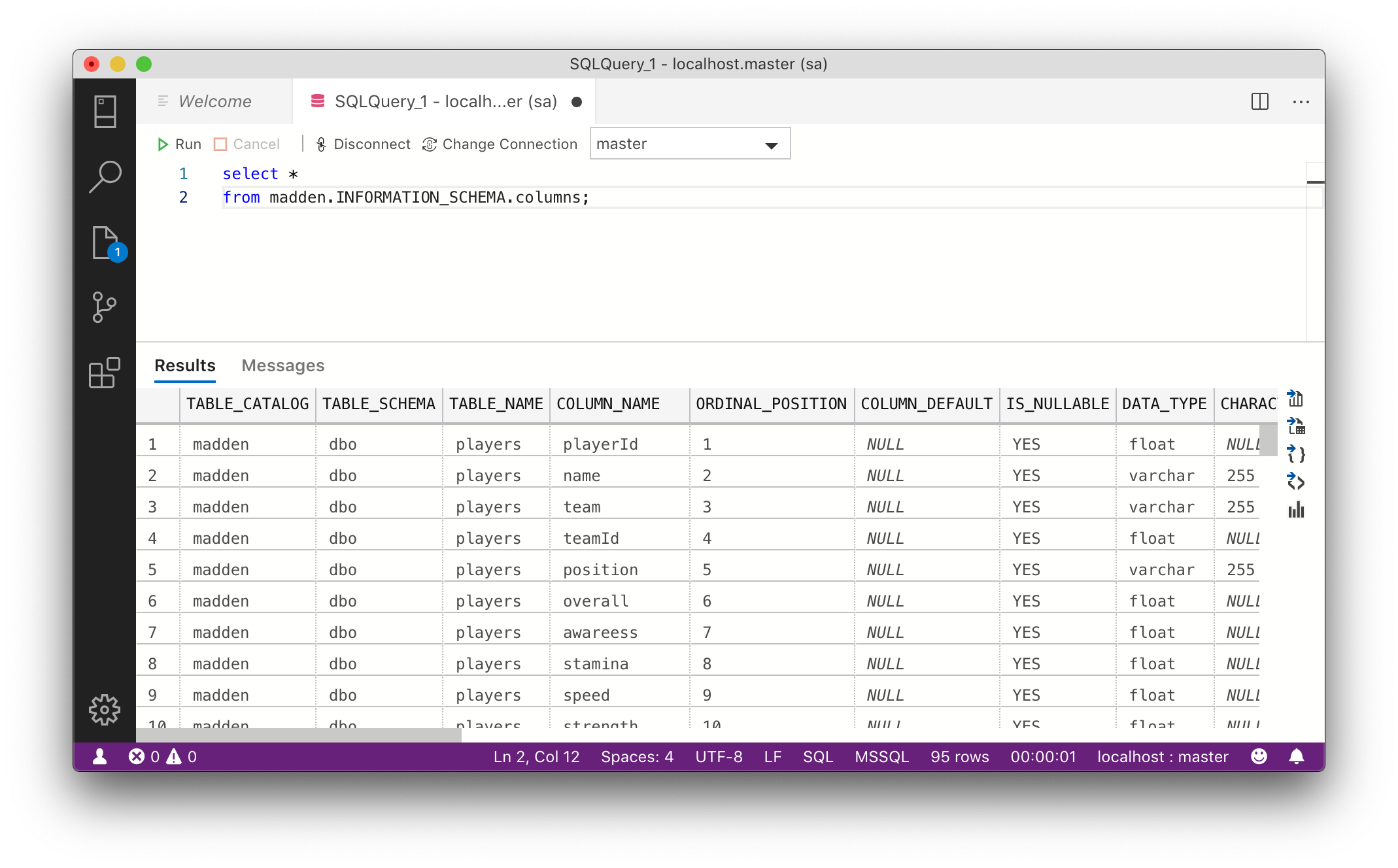
Now that we know what databases are available, it is helpful to list all tables and columns in those tables, for a given database. In this case, the madden database is used.
select * from madden.INFORMATION_SCHEMA.columns;
Write All Databases, Tables and Columns to Excel Using Loop
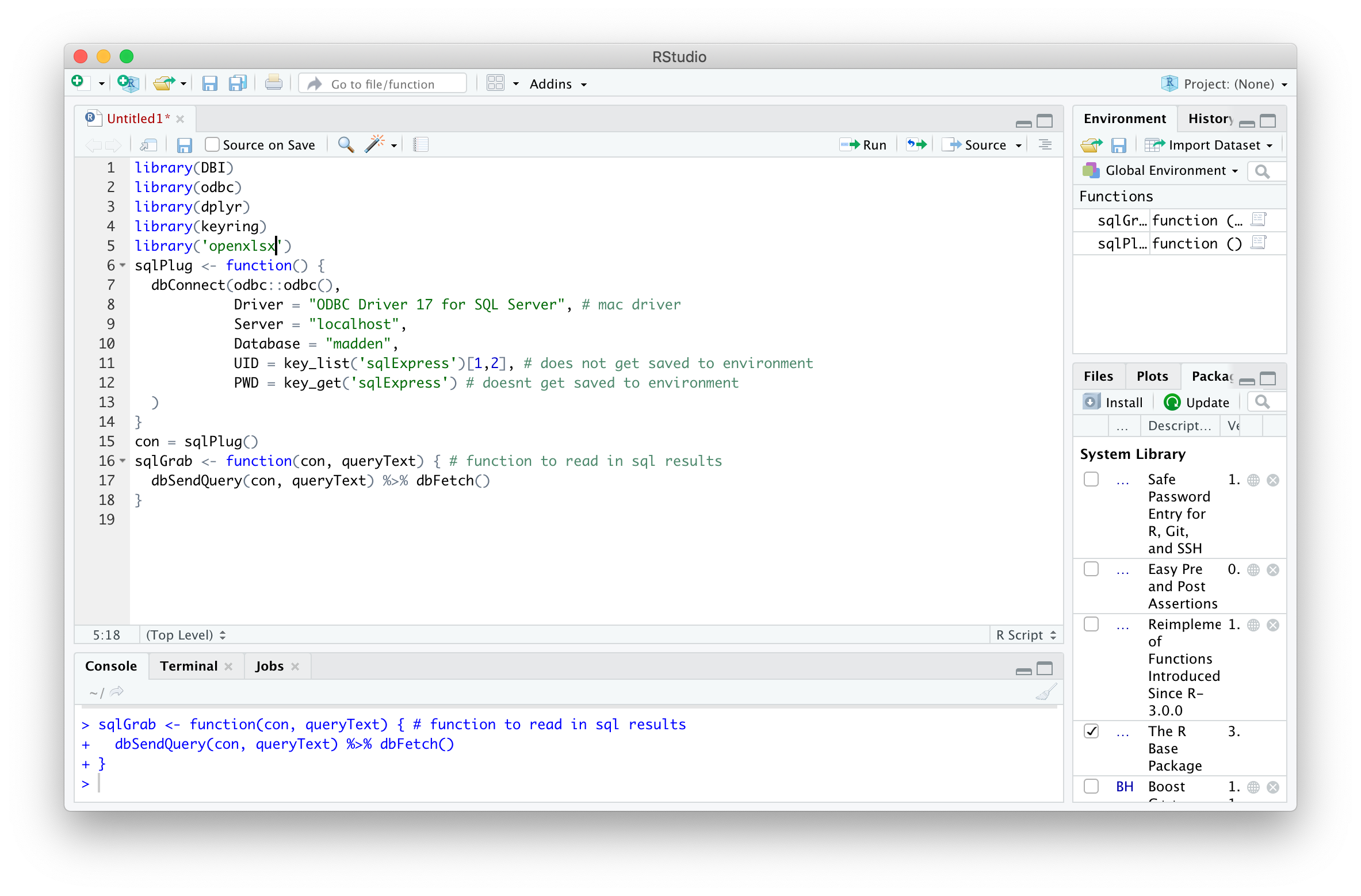
Listing out the contents was pretty straightforward, but as Server instances get bigger and bigger, it gets harder to track what’s in around. Using the sqlTalk() function and the openxlsx package, the tables and columns of each database can be written to an Excel file with each database on its own tab. The first step is calling the packages and creating the function.
library(DBI)
library(odbc)
library(dplyr)
library(keyring)
library(openxlsx)

sqlPlug <- function() {
  dbConnect(odbc::odbc(),
            Driver = "ODBC Driver 17 for SQL Server", # mac driver
            Server = "localhost",
            Database = "madden",
            UID = key_list('sqlExpress')[1,2], # does not get saved to environment
            PWD = key_get('sqlExpress') # doesnt get saved to environment
  )
}
con = sqlPlug()
sqlGrab <- function(con, queryText) { # function to read in sql results
  dbSendQuery(con, queryText) %>% dbFetch()
}
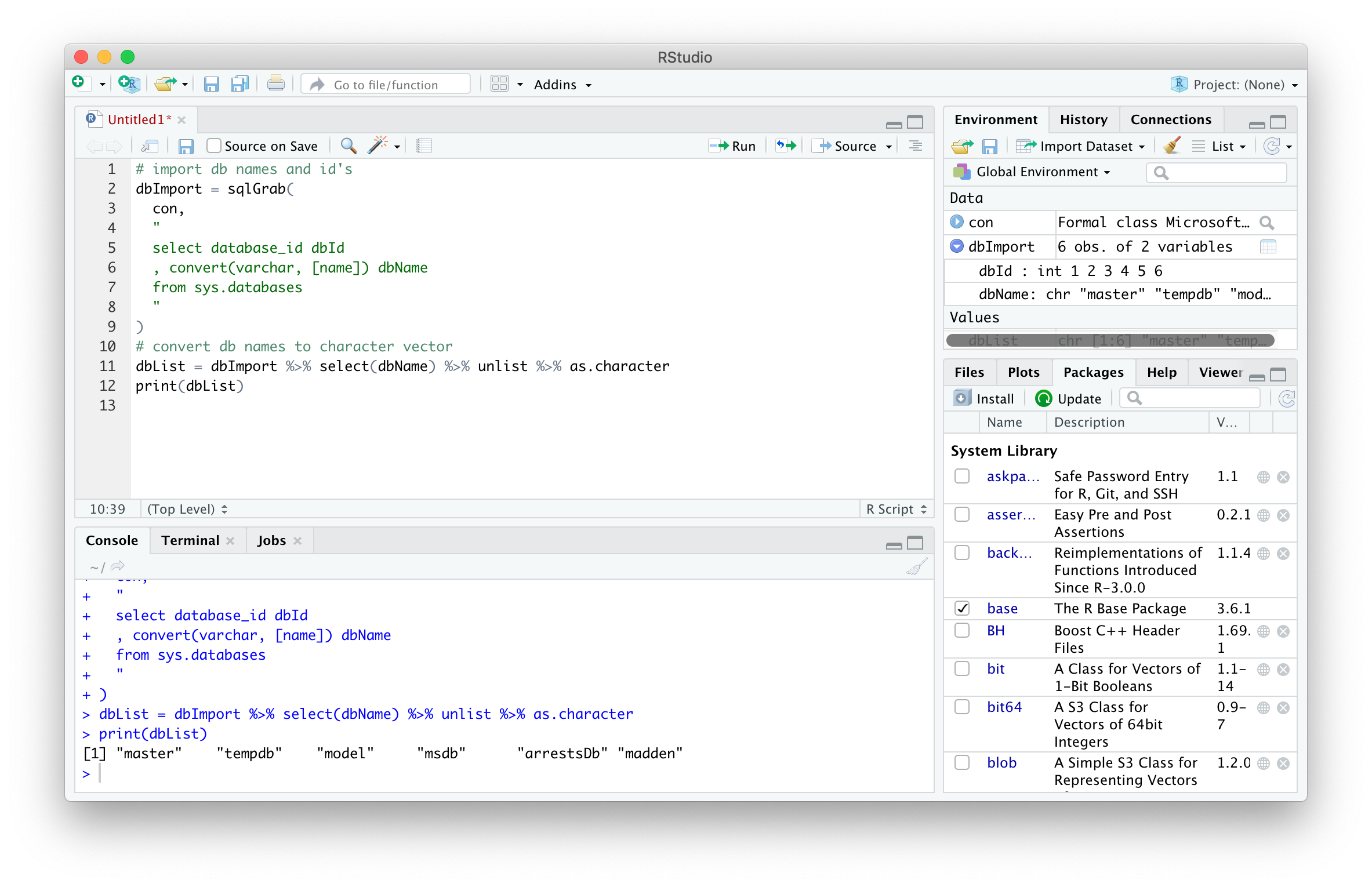
First, the database names can be extracted using the sqlGrab function. Some of the datatypes in the sys objects described above are of the sysname data type, so to ensure that no data is lost, these columns must be converted to varchar data types. The database names can then be converted to a character vector to loop over later.
dbImport = sqlGrab(
   con,
   "
   select database_id dbId
   , convert(varchar, [name]) dbName
   from sys.databases
   "
 )
dbList = dbImport %>% select(dbName) %>% unlist %>% as.character
print(dbList)
Using this list, the same operations can be completed for each database. But because the output here will be one excel file for all databases rather than one excel file for each database, an Excel workbook object must be defined before the loop is created. Using the openxlsx package, a workbook object can be created. Then, a “for” loop is used to (a) concatenate the SQL query text that will return all tables and columns for a given database and (b) add the query results to a sheet in the workbook that was just created. The value i in this example will be the name of the database.
create workbook named 'wb'
 wb = createWorkbook()
 for (i in dbList) {
   queryText = paste(
     'select
     convert(varchar, TABLE_CATALOG) TABLE_CATALOG
     , convert(varchar, TABLE_SCHEMA) TABLE_SCHEMA
     , convert(varchar, TABLE_NAME) TABLE_NAME
     , convert(varchar, COLUMN_NAME) COLUMN_NAME
     , convert(varchar, ORDINAL_POSITION) ORDINAL_POSITION
     , convert(varchar, IS_NULLABLE) IS_NULLABLE
     , convert(varchar, DATA_TYPE) DATA_TYPE
     , convert(varchar, CHARACTER_MAXIMUM_LENGTH) CHARACTER_MAXIMUM_LENGTH
     from '
     , i
     , '.information_schema.columns'
     , sep = ''
   )
   colNameImport = sqlGrab(con, queryText)
   addWorksheet(wb, sheetName = i, gridLines = T)
   writeData(wb, sheet = i, colNameImport, withFilter = T)
   setColWidths(wb, i, 1:ncol(colNameImport), widths = 'auto') # expand column widths to fit contents
   freezePane(wb, i, firstRow = T) # freeze the first row
 }
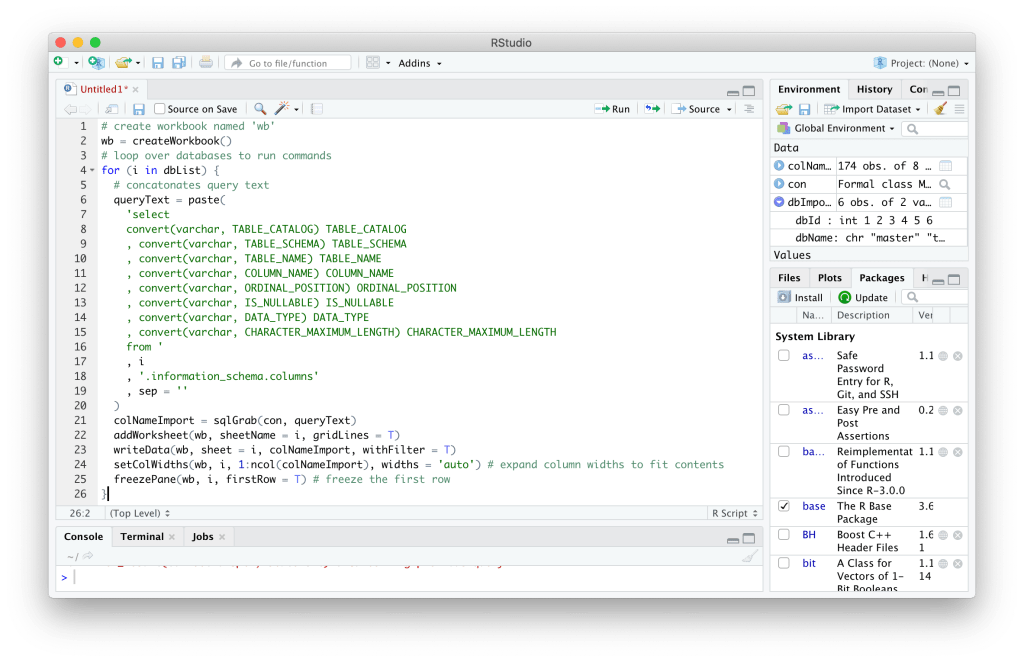
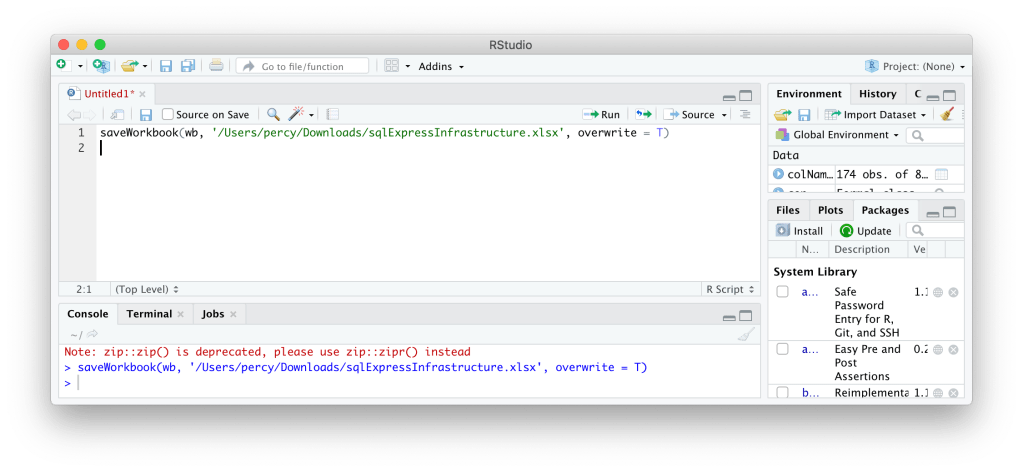
The workbook object can be saved to a specified destination, in this case the Downloads folder.
saveWorkbook(wb, '/Users/percy/Downloads/sqlExpressInfrastructure.xlsx', overwrite = T)
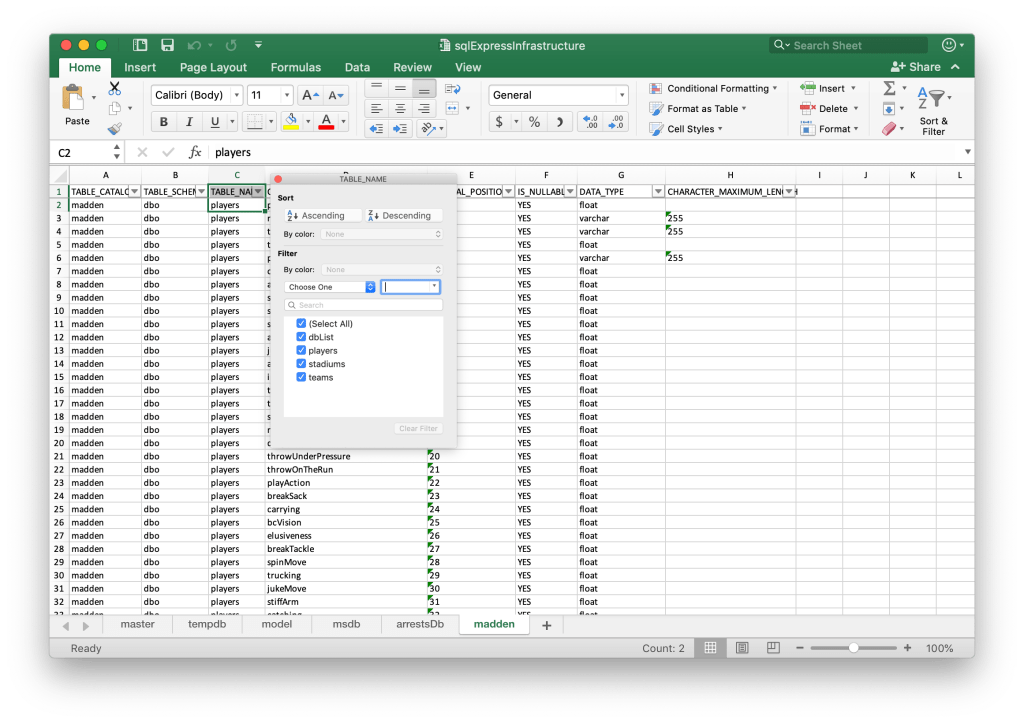
The openxlsx package has many other great formatting tools, so check it out!
 Realms of Pearl