R is a great tool to aggregate data across different sources and with the growth of Google Suite in business and academics, being able to import from a Google Sheet can be quite useful. Thanks to a few powerful packages, googlesheets and googledrive, Google Suite objects can easily be referenced in R scripts.
Sign into Google through R
For R to access objects on a secure Google Drive account, the credentials must be provided. This can be done through a web browser using a few packages and commands. When running the drive_auth() and gs_auth() commands, a browser window will open and ask for Google account credentials. Enter the credentials for the Drive account that the Google Sheet is on and select “Allow” to grant R permission. Note that the browser will open twice if both commands are run.
install.packages('googledrive')
install.packages('googlesheets')
install.packages('httr')
library(googledrive)
library(googlesheets)
library(httr)
gs_auth()
drive_auth()
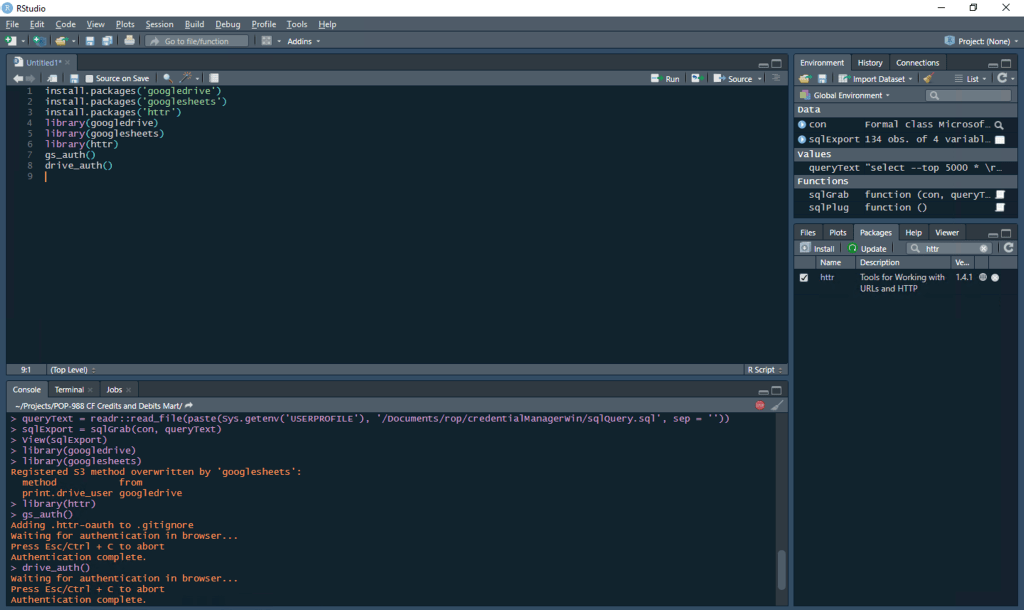
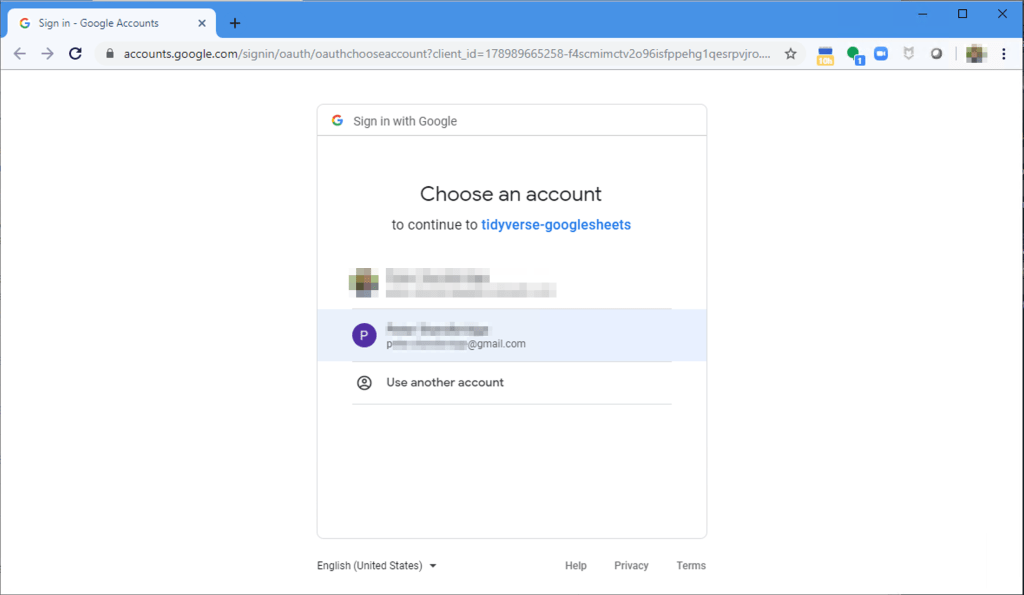
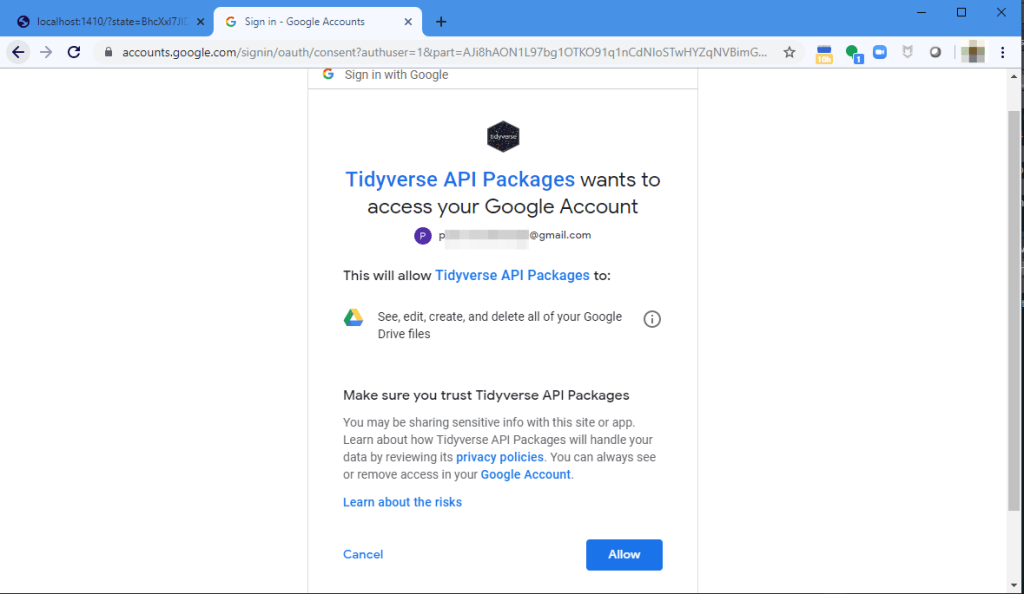
R is now connected to Google Drive and can run an array of operations, but if this process needs to be automated, there is another step to store the credentials. If automation is not wanted or needed, move down to Search Drive for File.
Save Credentials as RDS file for Automation
For a script with the Google Suite packages to run without inputs, the credentials must be stored in a safe place to be referenced in the scripts. After completing the authentication shown above, run the following commands to save the credentials in an RDS file in a secure location. In this example, the RDS file will be saved in a sub-folder of the Documents folder in a password protected Windows User Account. Be sure to never saved these in a shared folder, as someone could make changes to Google Drive as you!
authKey= drive_auth(cache = F) # authenticate again to create object
saveRDS(authKey, paste(Sys.getenv('USERPROFILE'), '/Documents/rop/driveKey.rds', sep = '')) # save as RDS file
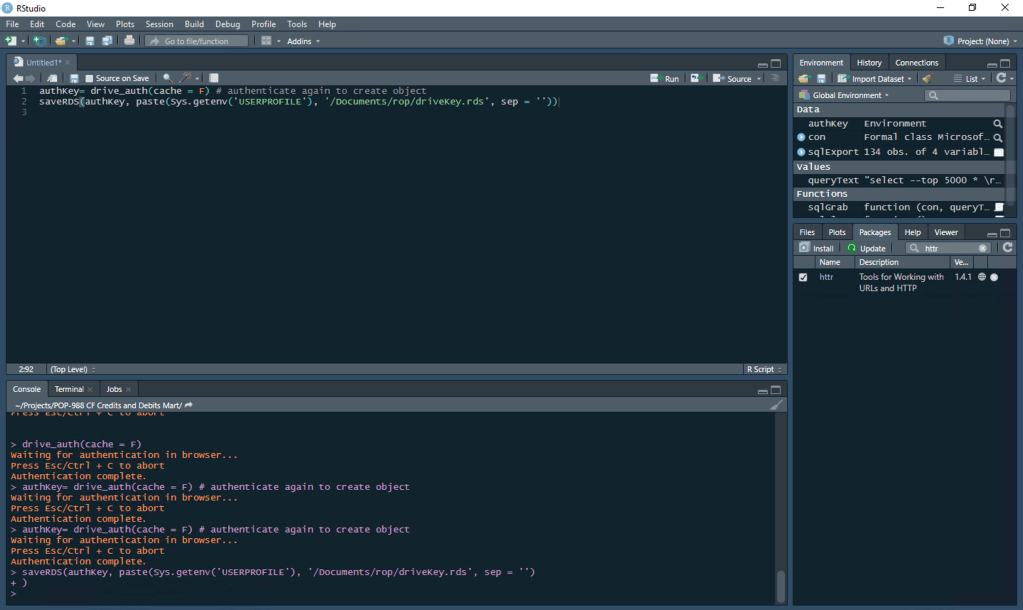
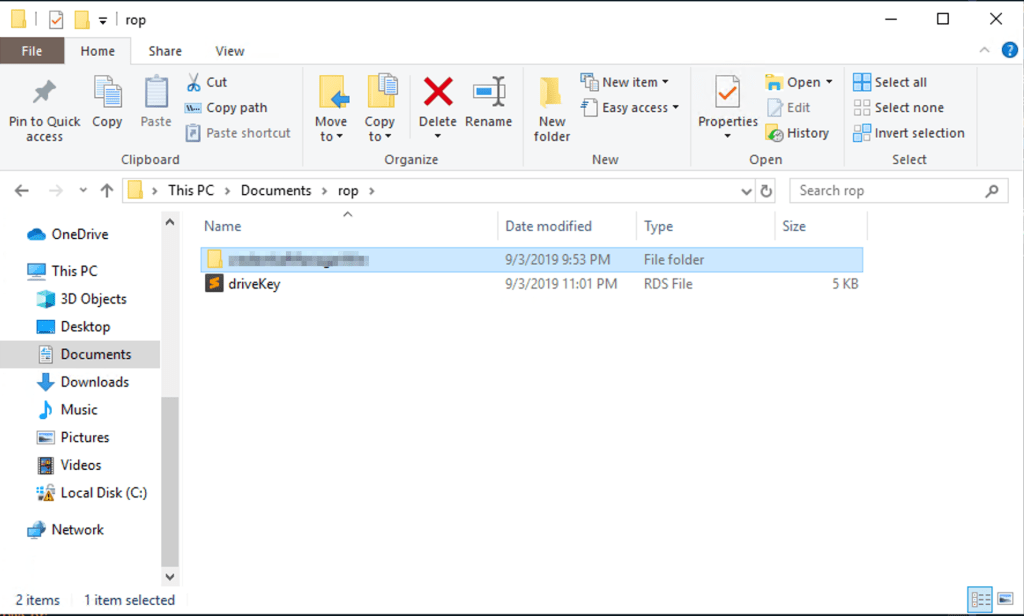
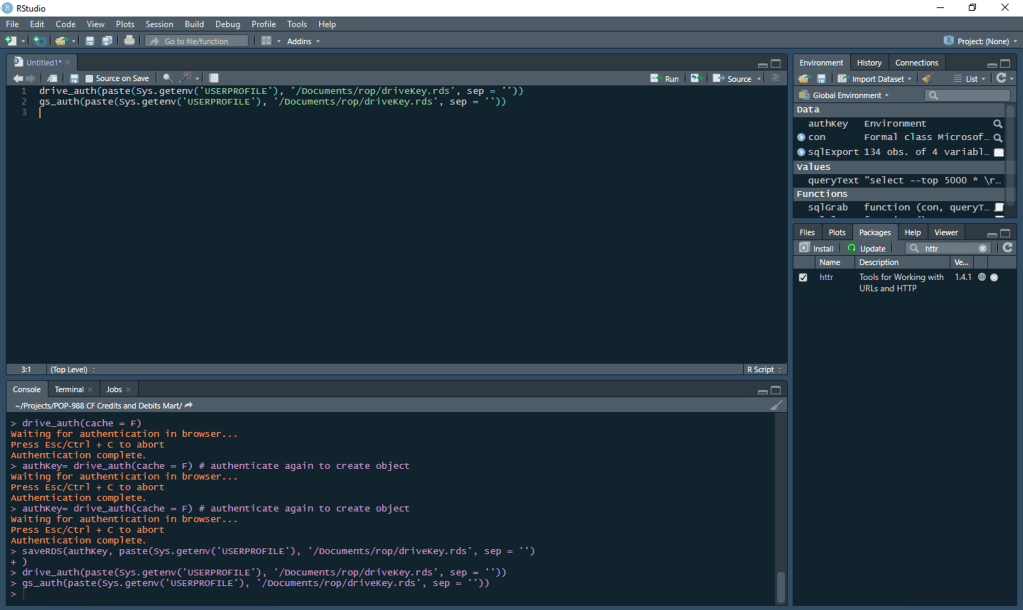
This file can now be referenced in R scripts to automatically connect to Google Drive. The file path is simply referenced in the drive_auth() and gs_auth() commands.
drive_auth(paste(Sys.getenv('USERPROFILE'), '/Documents/rop/driveKey.rds', sep = ''))
gs_auth(paste(Sys.getenv('USERPROFILE'), '/Documents/rop/driveKey.rds', sep = ''))
Search Drive for File
Now that the connection has been made, Google Drive can be searched as if you are in the browser. There is a bunch of useful syntax available, including advanced filters and like operators, but this example will search for a file by name and file type of “spreadsheet”, which limits results to Google Sheets files.
fileNames = drive_find(q = "name = 'foodOutputsByCity'", type = 'spreadsheet' )
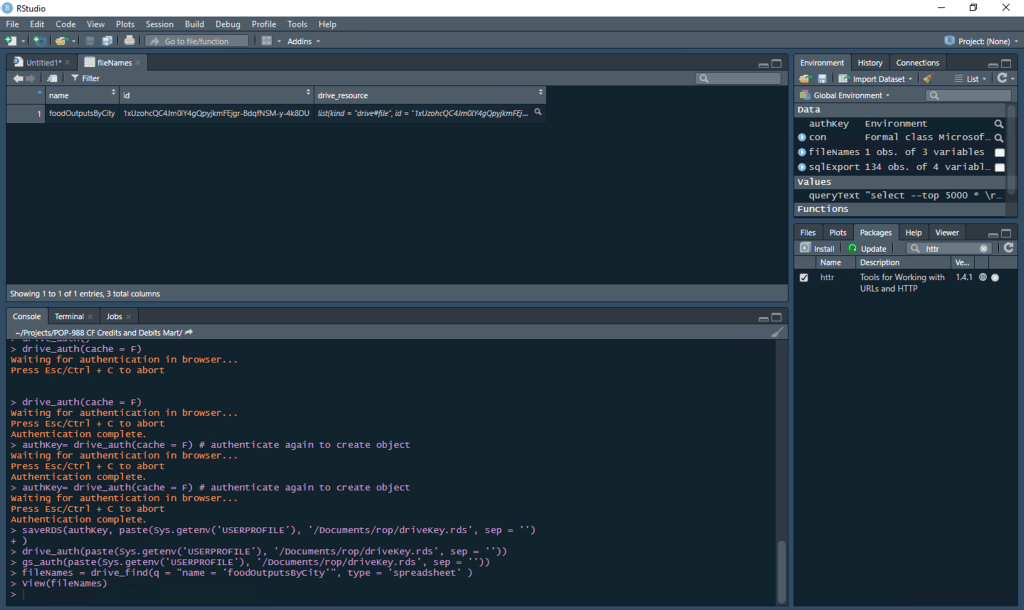
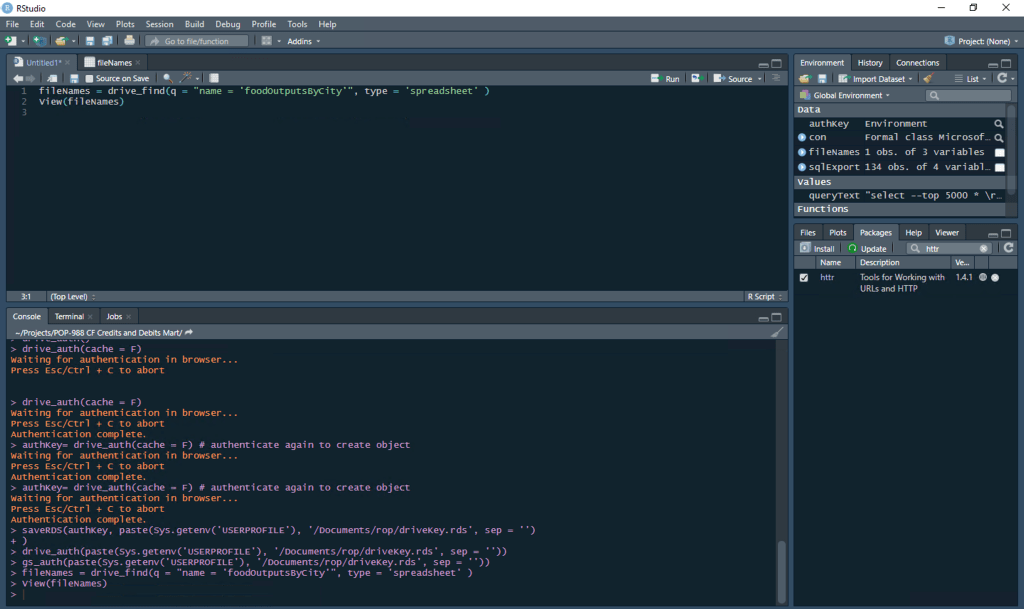
Using the id that comes back in the fileNames data frame, the Google Sheet can be registered and imported in a few functions.
# convert ID to character
fileId = fileNames %>% as.data.frame() %>% select(id) %>%
  unlist %>% as.character()
# register google sheet
fileReg = gs_key(as_id(fileId), lookup = F, visibility = 'private')
# import first sheet of google sheet
googleSheetsImport = gs_read(fileReg, ws = 1)
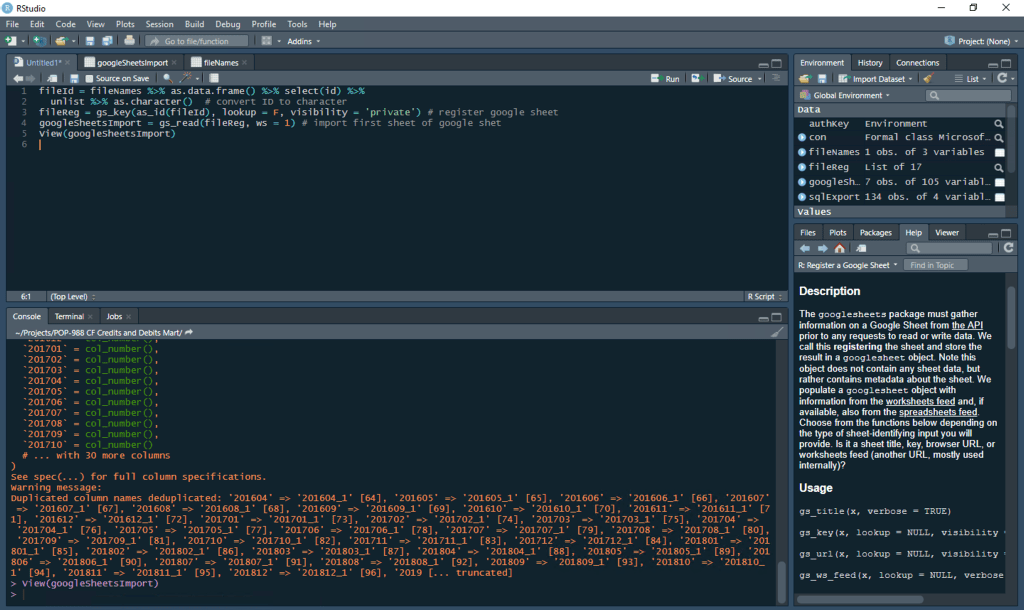
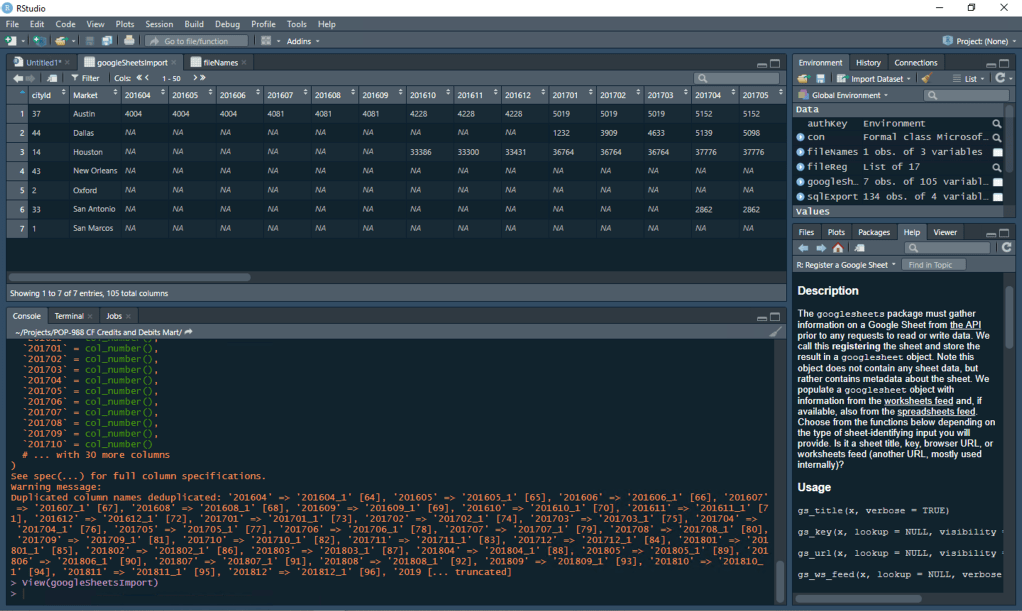
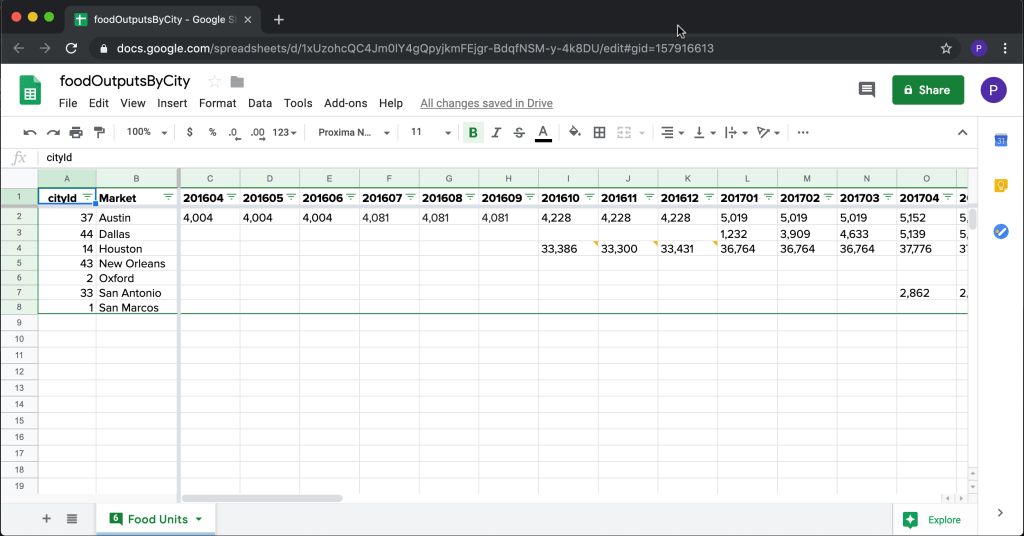
The data from the Google Sheet is now available in R for a variety of further manipulations! The food data just imported can be compared to drink data for the same groups, using an Excel Pivot table generated through a Python script.
 Realms of Pearl